

Docs / Claude and automations
Automations
An automation sends a page at a time you choose: once, every day, every week, every month, or when you press a button. On Windows it sends the page to a Discord channel, and Claude can prepare it first. On Android it can summarise the page with AI and send it to Discord or show it as a notification.
Automations on Windows
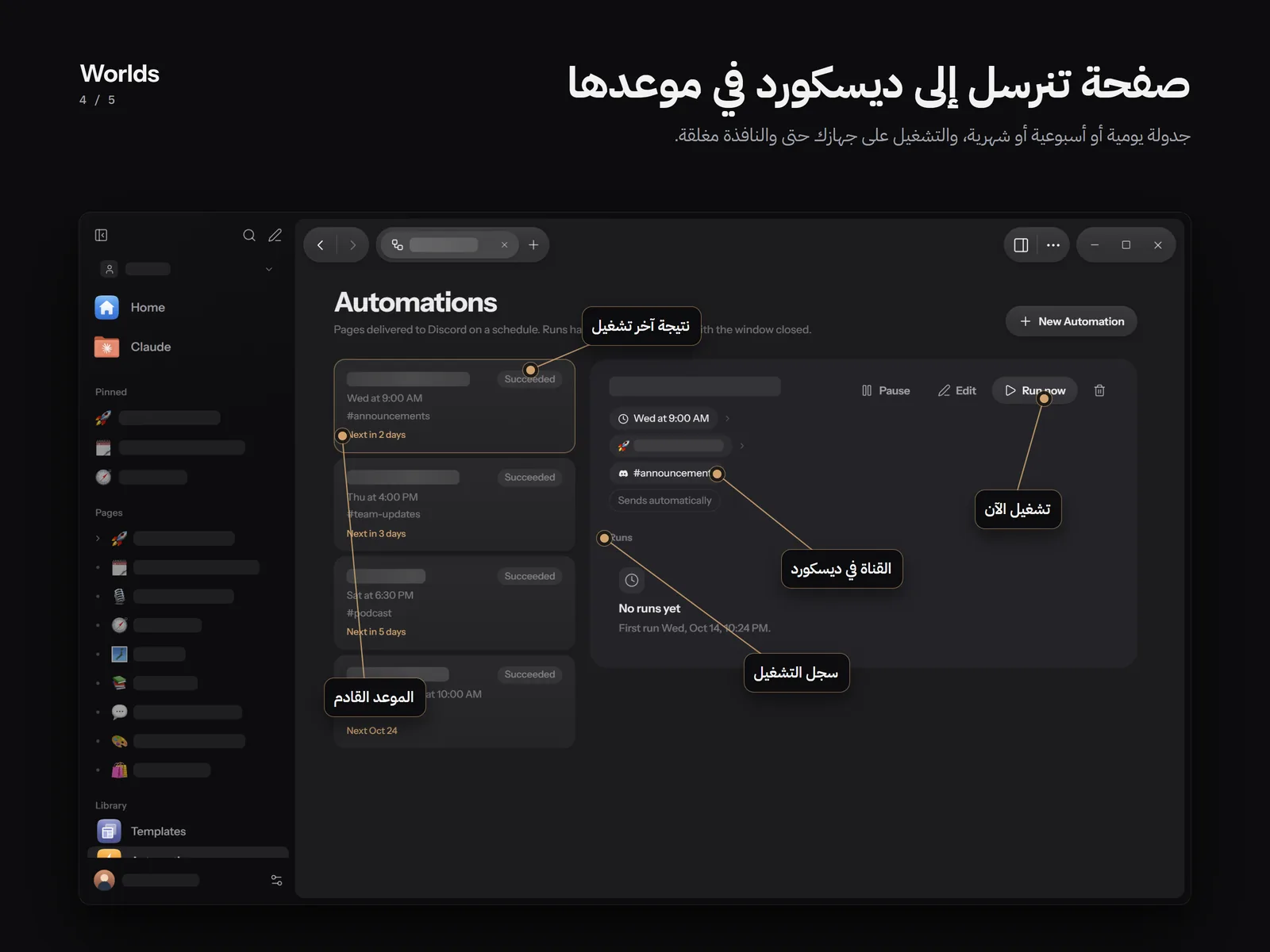
Open Automations from the sidebar. Under the title: "Pages delivered to Discord on a schedule. Runs happen on this PC, even with the window closed."
Creating an automation
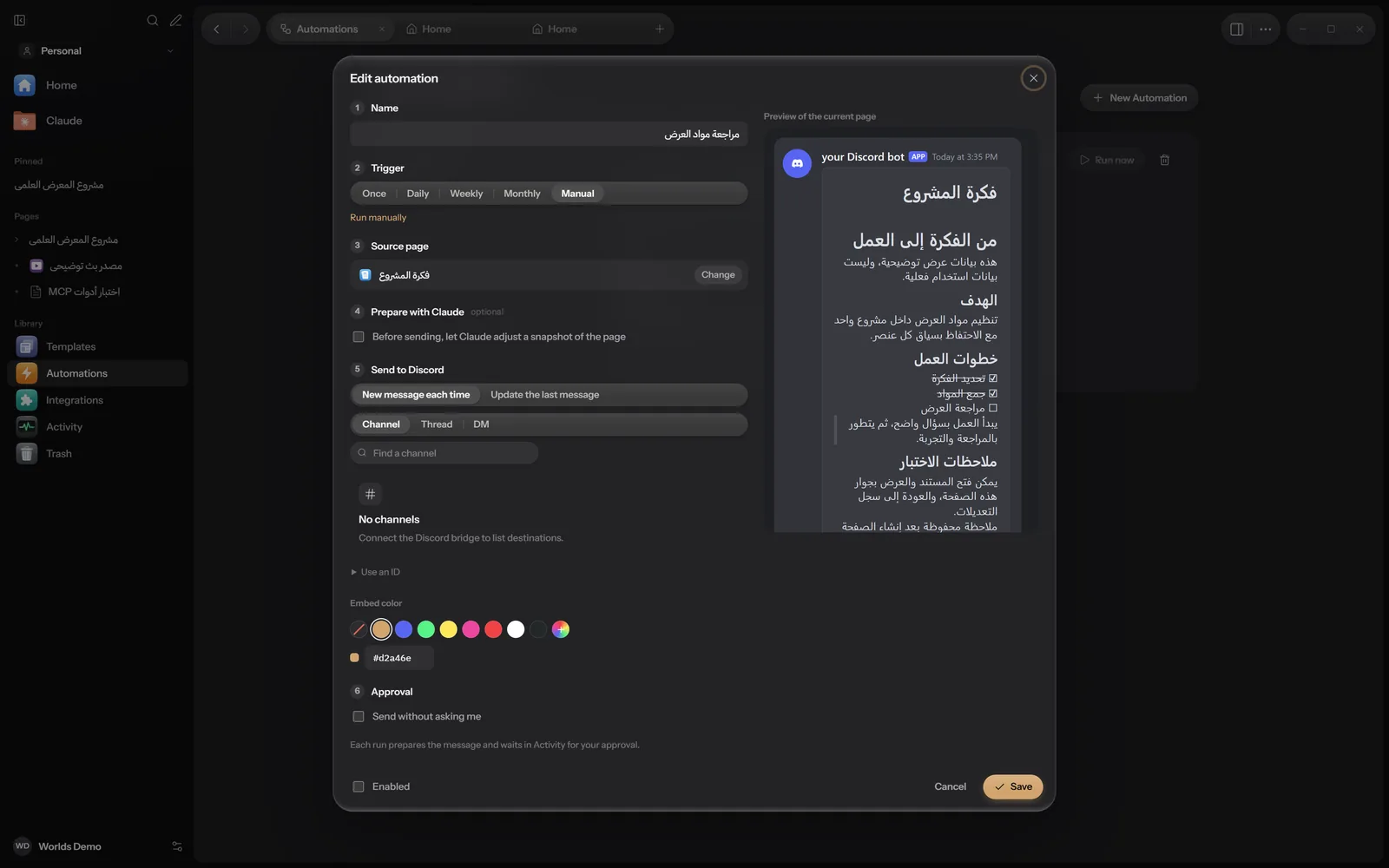
Click New Automation. You can also start from the command palette with Create Automation, or inside a page by typing / and choosing Schedule ("Send this page on a schedule"), which preselects that page.
Name
A name for the list, such as "Meeting reminder".
Trigger
Choose when it runs: Once, Daily, Weekly, Monthly or Manual. Details in the table below.
Source page
Search for the page under Find a page. You can switch it later with Change.
Prepare with Claude (optional)
Turn on "Before sending, let Claude adjust a snapshot of the page" and tell it what to do, for example update the date to today and remove completed tasks. Claude works on a copy taken at run time. Your page is not changed.
Send to Discord
Under Message mode choose New message each time, or Update the last message to edit the last message this automation sent instead of posting a new one. Then pick the destination (a channel, a thread or a DM) and the Embed color. This step needs a connected Discord bridge.
Approval
With "Send without asking me" off, each run prepares the message and waits in Activity for your approval. With it on, runs send automatically, even when Worlds is in the tray.
On the right is the Preview of the current page as it will look in Discord. If Claude prepares the page, the final message may differ. At the bottom are the Enabled checkbox and Save or Create. After saving, a message shows the next run time.
Schedules
| Trigger | When it runs |
|---|---|
| Once | At a date and time you pick, then the automation switches itself off. |
| Daily | Every day at the time you set. |
| Weekly | On the days of the week you pick, at the same time. |
| Monthly | On a day from 1 to 31 each month. In a shorter month it runs on the last day. |
| Manual | Only when you click Run now. |
Runs and their history
Select an automation to see its details: a line that sums up the flow (the trigger, the page, "Claude prepares" if it is on, the destination, then "Sends automatically" or "Waits for approval"), and the buttons:
- Pause and Resume.
- Edit.
- Run now asks "Run now?". Clicking Run and send counts as approval for that one run, so it sends at once.
- Delete removes the automation and its run history. The source page is untouched.
Under Runs is a table with Status, When, the trigger (Manual or Schedule) and Result: "Delivered", "Waiting in Activity", or the error text. Before each run Worlds saves a version of the source page.
If you decline the request in Activity, the run is recorded as cancelled. If a run was missed while Worlds was not running, it is recorded as skipped.
When runs really happen
Automations run inside Worlds on this PC, not on a server. Worlds checks the schedule every 15 seconds.
- Closing the window does not stop Worlds: it stays in the tray and schedules keep running.
- If the PC was off or Worlds was not running and it comes back within 30 minutes of the scheduled time, the missed run still happens. After that it is recorded as skipped.
- In Settings, Automations, Background: "Keep running in the tray", and "Start with Windows", which starts Worlds hidden in the tray after a restart.
Notices on Windows
Worlds on Windows does not show system notifications. When a request waits for you, you see three things inside the app:
- A short message with the page name saying it is ready to send and needs your approval.
- A Needs approval item in the sidebar with a count, shown only while requests are waiting.
- The Needs approval section in Activity, with Approve and send and Decline.
Automations and Claude
The "Prepare with Claude" step uses the provider and model chosen in Worlds, and Claude has no tools during it: it only rewrites the text of the copy. In a chat or through the MCP server, Claude can create, edit or run automations, but anything Claude creates always waits for your approval before sending.
Automations on Android
On Android the Automations screen says: "Scheduled triggers, AI summaries, Discord webhooks and notifications." Tap New automation and fill in:
Automation name and trigger
Daily, Weekly or Manual, with Time (HH:MM).
Source page
Tap Choose a page.
Transform
Page as it is, or AI summary with Instructions for the AI (default: "Summarize this page in a few short points."). It uses the provider and model chosen in AI settings. If this step takes longer than 3 minutes it stops and nothing is sent.
Action
Discord webhook with a Discord webhook URL (an https address you create in the channel's settings in Discord), or Notification on this device. For a notification, Worlds must be allowed to show notifications; otherwise the automation fails and an Open notification settings button appears.
Android checks the schedule about every 15 minutes, so a run can start a few minutes after its time. Results are in Run history: Succeeded, Failed or Skipped, with what happened, such as "AI summary by" and the provider name. If the AI step fails, nothing is sent.
An automation made on Windows that sends through the bridge does not run on Android, which only sends through a webhook. Add a webhook URL to it if you want it to run from the phone.
Other platforms
Automations do not run yet on iPhone, iPad and Mac, or in the web version.