

Docs / Write and organise
History and backups
Worlds saves your work as you type, keeps earlier versions of every page, puts what you delete in Trash, and backs up your database every day. This page explains how to get back to any of them.
Saving and undo
- A page saves automatically a moment after you stop typing, and Ctrl + S saves right away. The save state shows at the top of the page.
- Ctrl + Z to undo, and Ctrl + Shift + Z or Ctrl + Y to redo, inside the page you are writing in.
- When you delete a page, a message appears with an Undo button that brings it straight back.
Drawings, spreadsheets and presentations have their own undo inside their editors. Drawings also have named versions: see Saving and versions in drawings.
Page history
Open the history with the History button at the top of the page, or the Page History command in the command palette. A side panel opens with three tabs: Info, History and Assistant.
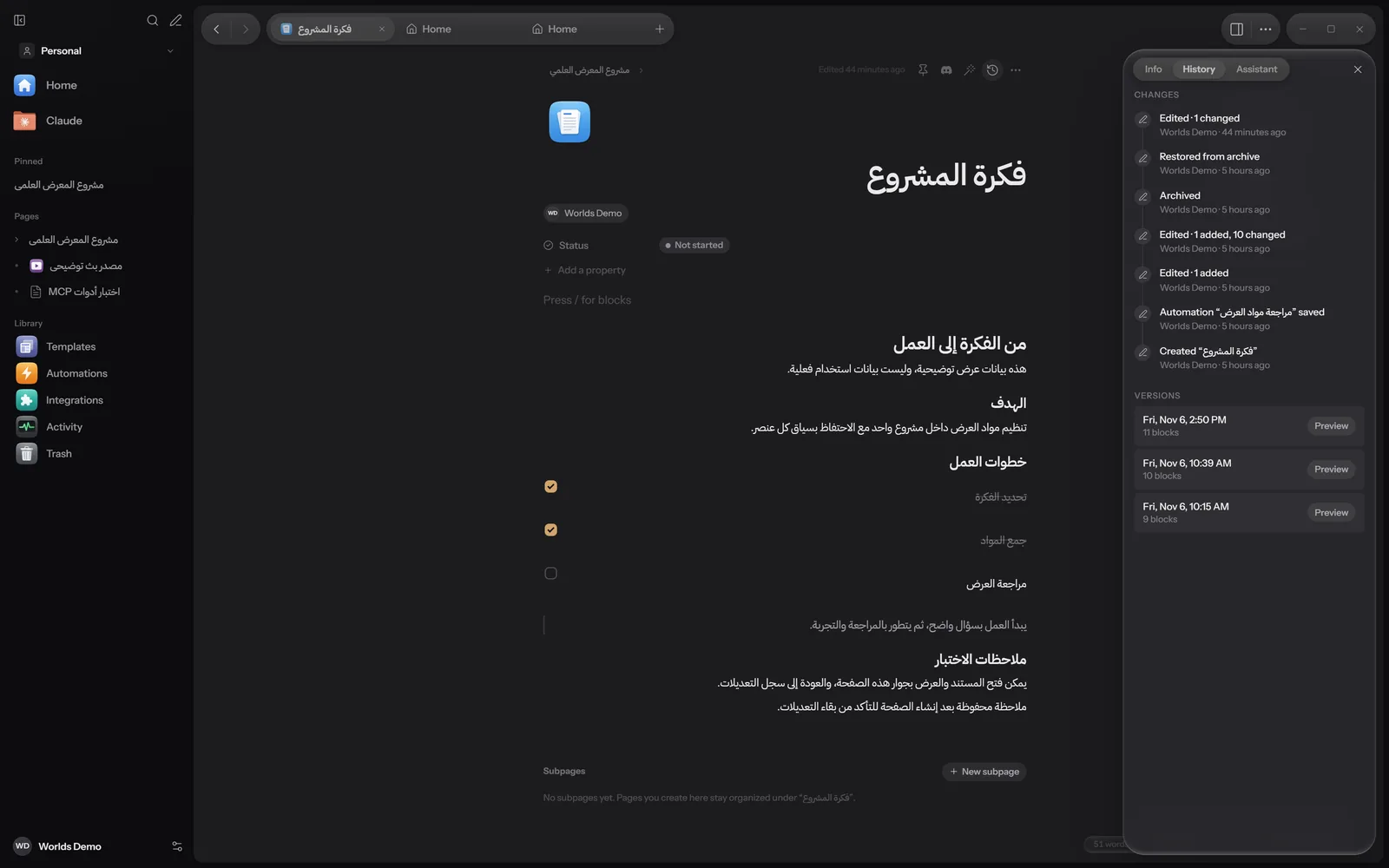
Changes
The Changes section lists the last 200 changes to the page: who changed it, when, and how many blocks were added or changed. Changes made by Claude or by automations have Review changes and Undo buttons, and the review window has Undo all.
Versions
The Versions section lists saved versions with their date and number of blocks. Worlds keeps a version:
- Before each editing session: when you start typing after 10 minutes or more without edits.
- Before every change Claude or an automation makes.
- Before every restore of an earlier version.
Preview
Press Preview next to a version to see the page as it was.
Restore
Press Restore this version. You see "Version restored. The previous state was kept as a version too." So you lose nothing, and you can go back to before the restore.
There is no side-by-side comparison of two page versions yet. The comparison you get is Review changes, for changes by Claude and automations.
Trash and restore
When you delete a page, it moves to Trash together with its subpages. Open Trash from the Library in the sidebar, or the Trash command. "Deleted pages stay here until you remove them permanently": Trash never empties itself.
- Restore: puts the page back.
- Delete permanently: asks Delete permanently?, then removes the page and its subpages from this computer. This cannot be undone.
Archiving
Archiving hides a page you do not need right now, without deleting it. Choose Archive from the page menu. Archived pages are listed in the Archived section of Trash with Unarchive, and they still show in search.
Backups
Worlds makes a full copy of your database:
- Daily: when the app starts, at most once every 24 hours, after checking the database is healthy.
- Before an update: before every change to the storage format when the app updates.
- Manual: whenever you ask.
It keeps the last 10 daily copies and 20 of the other kinds, and removes older ones. The copies are in the backups subfolder of the data folder.
In Settings
Open Settings, then Storage. In the Backups group:
- Back up now: an immediate manual copy, with the time of the last backup under it.
- The 8 newest backups with their date, kind and size, each with Restore.
- Backups folder and a Show button to open it.
Restoring a backup
Choose the backup
Press Restore next to it, then confirm with Restore at next launch.
Restart Worlds
Restore waiting appears with a Cancel button if you change your mind. On the next start the restore is applied, and your current database is first kept as a "before restore" copy.
If Worlds finds at start that the database is damaged, it replaces it automatically with the newest healthy backup. If the daily check finds a problem, Settings shows "The database needs attention" and suggests restoring or backing up now.
Backups live on the same computer. If the computer fails, they go with it. Copy the data folder to an external drive now and then, or use Sync.
What works where
| Feature | Windows | Apple | Android |
|---|---|---|---|
| Keeping versions | Yes | Yes; the restore screen is in progress | Partly |
| Trash | Yes | Partly: restore, but no permanent delete | Partly |
| Backups | Yes | In progress | In progress |
The Apple and Android apps are still in progress. Details in Install.