

Docs / Claude and automations
Claude and other AI providers
Worlds has an assistant that reads your pages, writes in them and reorganises them, and every change it makes can be undone. You can run it with Claude Code or Codex, with an API key from a provider you choose, or with a model running on your own computer.
Where to find the assistant
- Claude in the sidebar opens the full conversations view, with your earlier chats and a search.
- Ask Claude, shortcut Ctrl + J, opens a side panel over the page you are on.
- Ask Claude About This sends what you selected on the page into the chat.
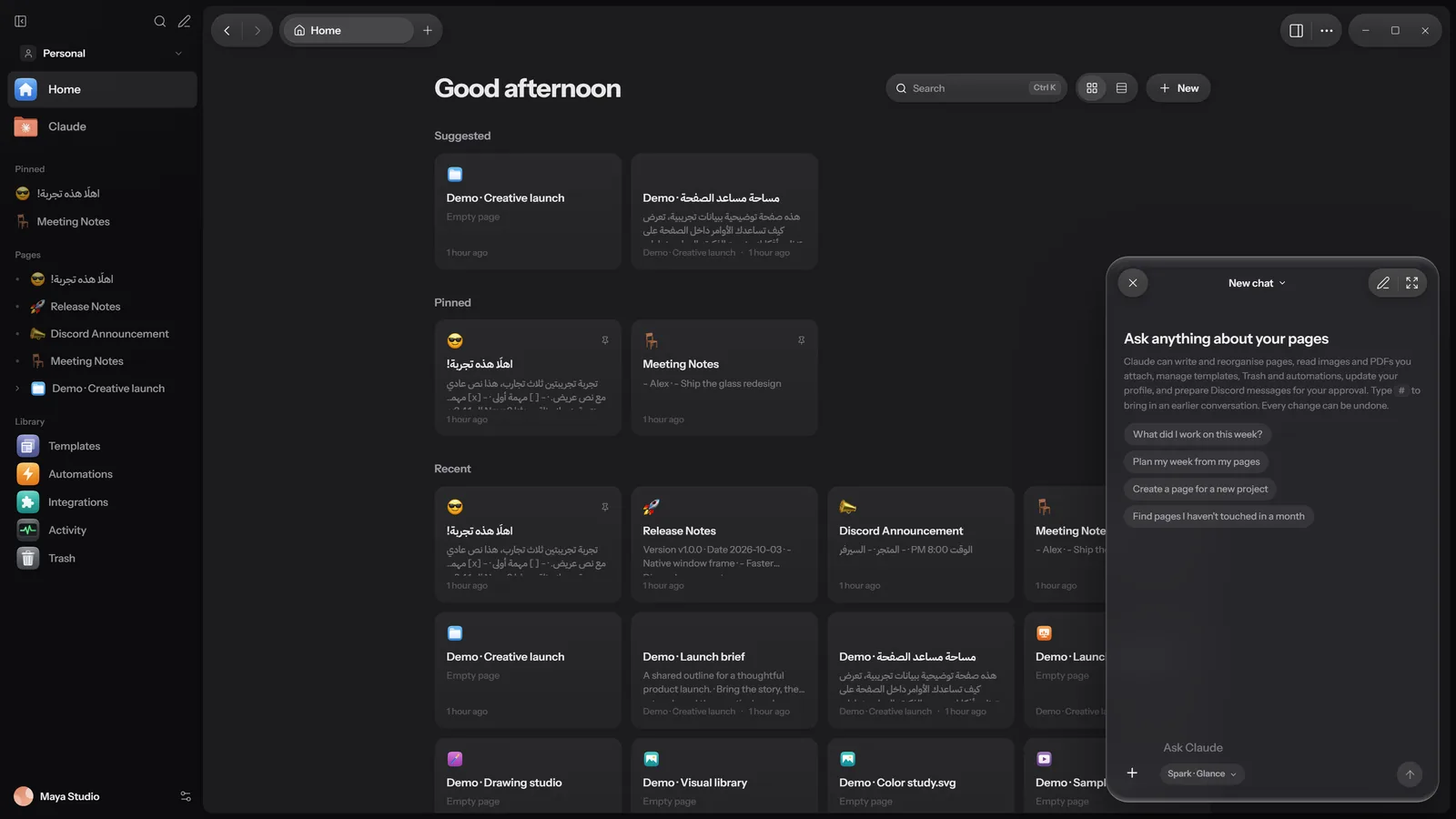
Under the text field is a button showing the model and effort, such as Spark · Glance. Use it to pick the provider and model for this chat.
Ways to connect the assistant
Everything is in Settings, Providers, in four groups:
| Group | What is in it | Needs a key? |
|---|---|---|
| Sign in | Claude Code and Codex | No, you sign in with your account in the browser |
| API keys | Anthropic, OpenAI, Google Gemini, Groq, DeepSeek, Mistral, xAI and OpenRouter, plus LiteLLM and Custom for any compatible server | Yes, except LiteLLM and Custom where it is optional |
| Running on this PC | Worlds detects local servers that are running now | No |
| Local model servers | Ollama, LM Studio and llama.cpp | No |
Claude Code or Codex
This is for people with a Claude or ChatGPT subscription. The app itself (Claude Code or Codex) must be installed on the PC.
Open Settings, Providers
The Sign in group has a row for Claude Code and one for Codex. If the app is missing you see "Claude Code is not installed on this PC."
Sign in
Click Sign in to Claude or Sign in with ChatGPT. A console window starts the official sign-in in your browser. Worlds never sees or keeps those sign-ins.
Check
When you have finished in the browser, click Check again. When the row says Ready, you can start.
Settings, Claude has more options for Claude Code:
- Stay signed in: one sign-in that lasts about a year. The token is kept in Windows Credential Manager.
- Model and effort: the models Spark, Orbit and Nova are Haiku, Sonnet and Opus, and the effort levels Glance, Focus and Deep are low, medium and high. The default, Spark with Glance, keeps everyday edits fast and inexpensive.
- Global instructions: instructions the assistant reads in every chat.
- Use Worlds from Claude Code sessions adds the Worlds tools to the Claude Code you use outside the app. See MCP server.
When Claude Code runs inside Worlds, every one of its built-in tools is disabled and only the Worlds tools are on: no shell and no access to the files on your computer.
An API key
Pick the provider
In the API keys group, click Set up next to the provider.
Paste the key
Paste the key and click Save key. The row shows Key saved, and the key is never shown again. To replace it, paste a new one; to delete it, click Remove.
Pick a model
Click Load models to fetch the provider's model list, then choose the provider and model from the model button under the chat field.
Claude subscription sign-in tokens are refused here. Use an API key from the Claude Console, or use Claude Code.
The address each provider starts with (change it under Server address, then Save address):
| Provider | Default address |
|---|---|
| Anthropic | https://api.anthropic.com |
| OpenAI | https://api.openai.com/v1 |
| Google Gemini | https://generativelanguage.googleapis.com/v1beta/openai |
| Groq | https://api.groq.com/openai/v1 |
| DeepSeek | https://api.deepseek.com/v1 |
| Mistral | https://api.mistral.ai/v1 |
| xAI | https://api.x.ai/v1 |
| OpenRouter | https://openrouter.ai/api/v1 |
| LiteLLM | http://localhost:4000/v1 |
| Custom | Any server with an OpenAI compatible chat API |
A model on your computer
Ollama, LM Studio and llama.cpp run models on your own PC, with no key and no internet. Start one, then open Settings, Providers. The Running on this PC group shows Running next to what Worlds found, or Not running at with the address. Click Detect again after you start the server.
- Ollama
http://localhost:11434/v1- LM Studio
http://localhost:1234/v1- llama.cpp
http://localhost:8080/v1
On a phone, localhost means the phone itself. To use a model running on your computer, type the computer's network address, such as http://192.168.1.20:11434/v1.
Some models carry a Chat only badge: they can chat but cannot read or change your pages.
What the assistant can do
Type @ in the chat field to see what you can add: files (images, PDFs and documents), a page for Claude to work on, or an earlier conversation. Below them are the tool groups:
- Pages: create, rename, move, archive and edit pages.
- Find: search text, tags, status and properties.
- Layout: columns, toggles, boards, tables and galleries.
- Properties, Find and replace, and Covers and style.
- Profile, Automations, Templates, and Media and files.
- Discord: preview and send to Discord, with your approval.
- History: versions, undo and recent activity.
- Conversations, and Date and time.
On Windows the assistant also reaches tables, drawings, presentations, tasks and Trash. Type # to bring an earlier conversation into this one.
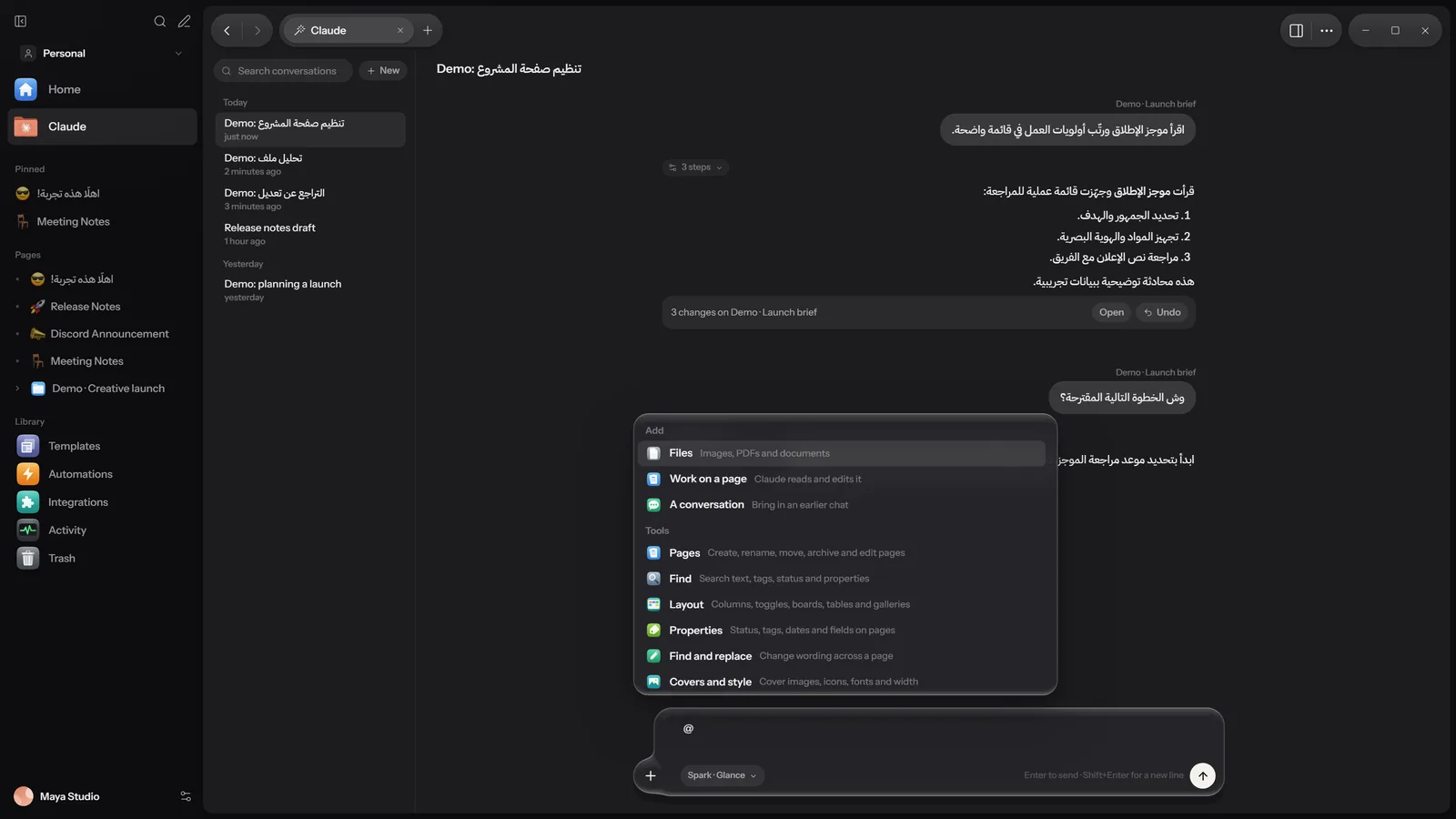
@ menu with the tool groups. An illustrative capture with sample data.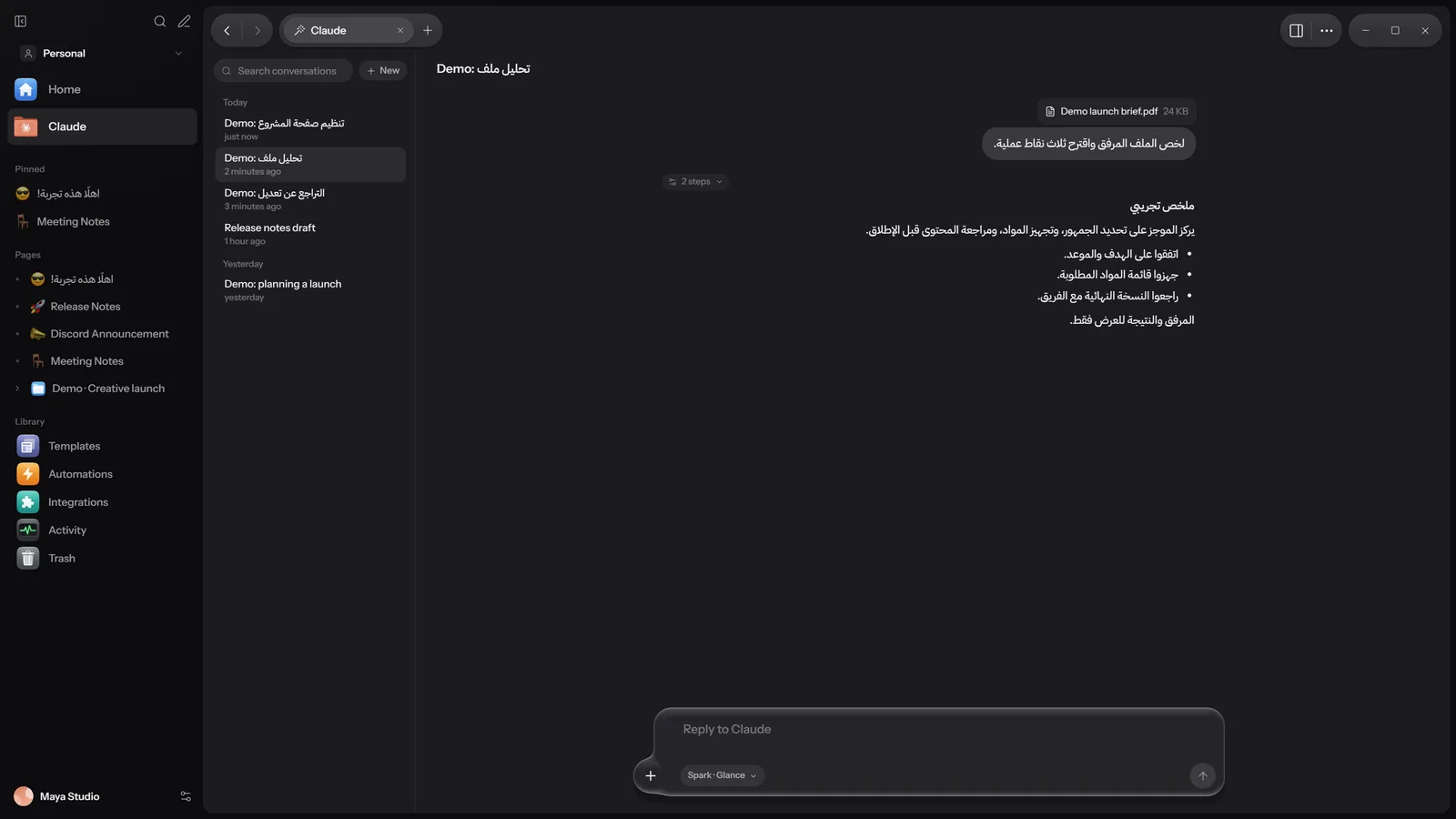
The assistant never sends anything to Discord on its own: it prepares the message, and it waits for your approval in Activity. See Discord bridge.
Undoing the assistant's changes
Before Claude changes anything, Worlds saves a version of the page. Under every reply that changed something there is a line such as 3 changes on Launch brief with two buttons: Open opens the page, and Undo reverts every change from that reply at once. Afterwards you see "Claude's changes were undone".
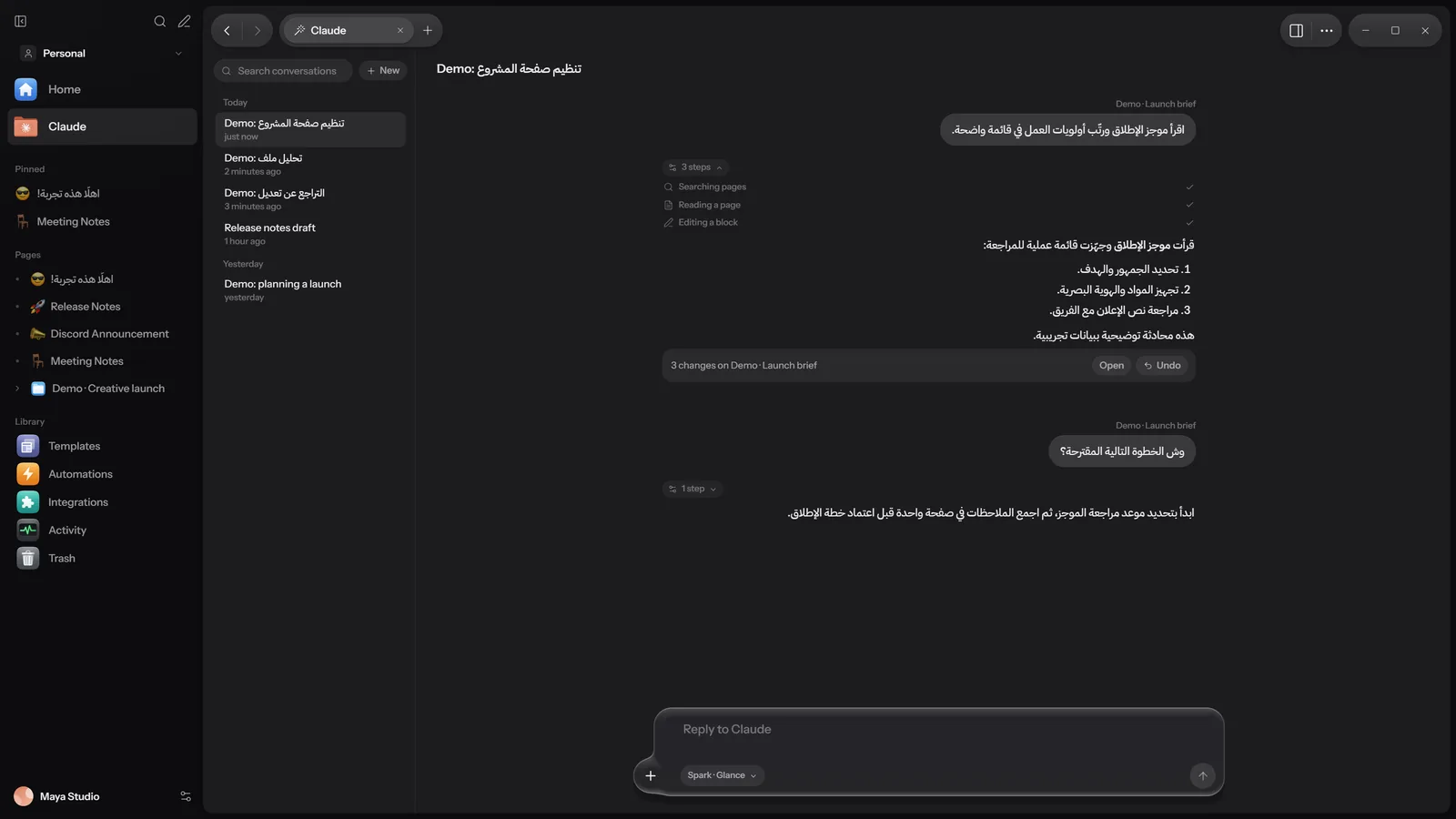
You can also undo later from the page's History panel: each group of changes has Review changes and Undo. Under Versions, a version is kept before each editing session and before every change Claude makes. More in History and versions.
What works on each platform
| Platform | Assistant |
|---|---|
| Windows | Reads and edits your pages with every Worlds tool, with every provider including Claude Code and Codex. Undo for every reply. |
| Android | Reads and edits with ten tools: a workspace overview, listing, searching and reading pages, creating a page, adding text to a page, editing a block, renaming a page, and adding and listing tasks. Works with the cloud providers and with Ollama, LM Studio and Custom, without Claude Code or Codex. Undo puts back the version saved before the change, and pages the assistant created go to Trash. |
| iPhone, iPad and Mac | Chat only for now: it reads page titles and previews, and cannot change your workspace yet. |
| Web | The assistant does not run in the browser. If you ask it something there, it answers that Claude works in the Worlds app on your computer and phone, and lists your latest pages. |
Where keys are kept
- Windows: in Windows Credential Manager, never shown again in the app. The Worlds database keeps only server addresses you changed, not keys.
- Android: keys are encrypted with the Android Keystore and stay on the device. App backup is off, so keys do not travel in a backup.
- iPhone, iPad and Mac: only in this device's Keychain, never shown again.
Keys are never sent to Worlds servers and are not synced. When you use a cloud provider, the chat and what the assistant reads from your pages go straight to that provider. With a local model, everything stays on your computer.