

Docs / Claude and automations
Discord bridge
Worlds sends a page to Discord as a formatted message: to a channel, a thread or a DM. On Windows it goes through your own Discord bot, and on Android through a webhook URL. Anything Claude or an automation prepares waits for your approval before it leaves.
How the bridge works on Windows
Worlds does not hold a Discord bot token. Messages go through a small module that runs next to your bot, on the machine where the bot lives:
- The module listens only on
127.0.0.1on the bot's machine, so nobody can reach it from the network. - Worlds opens an SSH tunnel to that machine, reads a shared key file from it and keeps the key in memory only.
- Every request carries that key. The module answers three requests: list the channels, threads and DMs it can reach, send, and edit an earlier message.
The bot token stays on the bot's machine, and messages are built with Discord's Components V2. Worlds servers are not involved.
This bridge is for people who run their own Discord bot. Worlds does not ship a ready module for the bot: docs/DISCORD_BRIDGE.md in the Worlds repository describes what the module must answer. SSH to the bot's machine must work without a password prompt (key-based login).
Setting it up
Open Settings, Discord
Enter the bot machine's address in Host (SSH), then SSH user, Module port and Key file on host. Entering a host turns the bridge on.
Check the connection
In Integrations, click Check connection on the Discord card. It shows Connected when everything works, Disconnected if the module is not installed, or another reason such as the machine being unreachable or the key being refused.
Sending a page
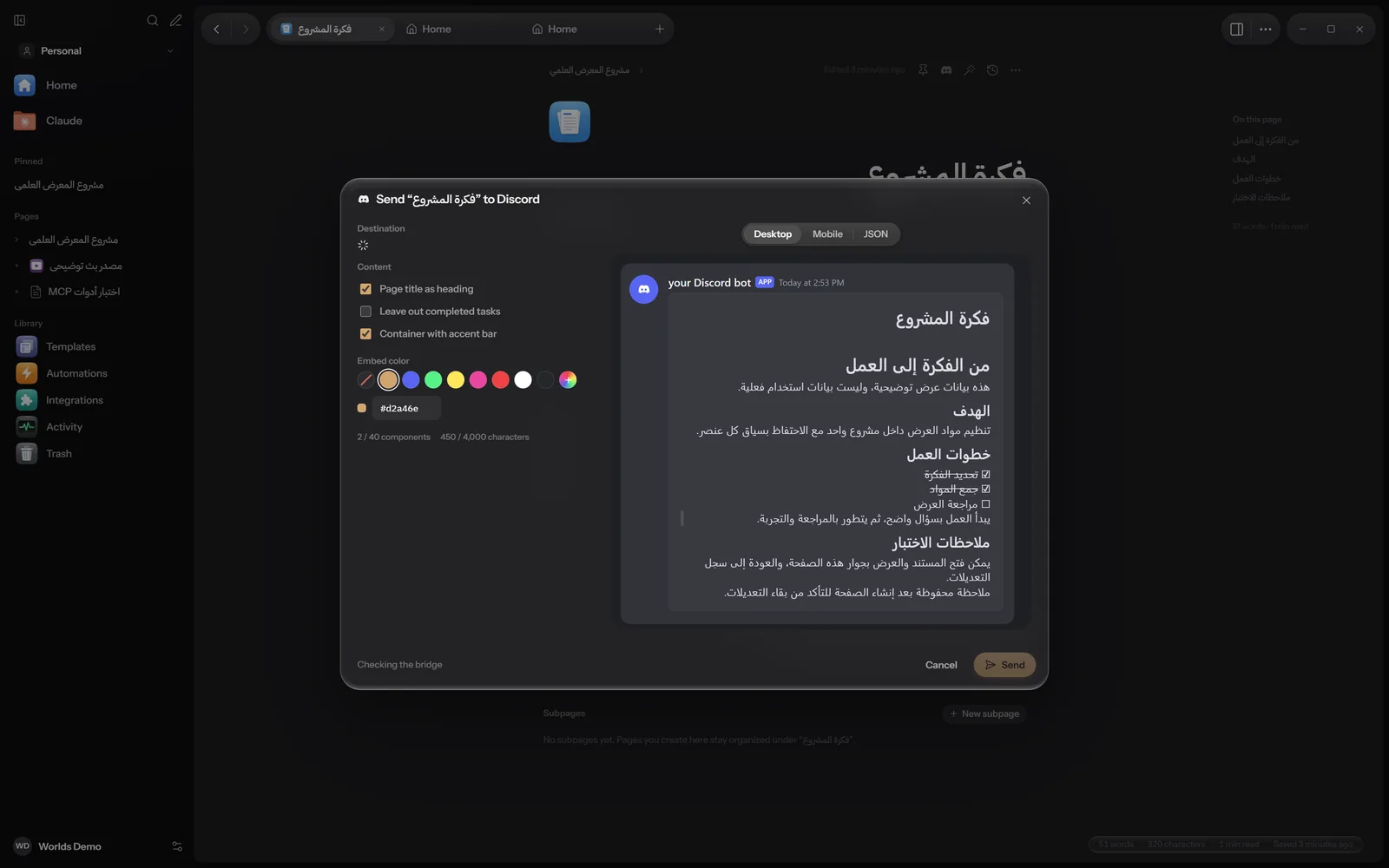
Open the page and click Send to Discord in the page toolbar, or choose it from the command palette. A dialog titled "Send "page name" to Discord" opens:
- Destination: tabs for Channel, Thread and DM, with a search (Find a channel or Find a person), and Use an ID if you know the destination's number.
- Content: Page title as heading, Leave out completed tasks, and Container with accent bar.
- Embed color: one of the ready colours, or type a colour code.
At the bottom: "Only the blocks shown in the preview leave Worlds." Then Cancel and Send.
Preview and limits
The preview on the right shows the message as it will look. Switch it between Desktop, Mobile and JSON. Under it are two counters:
- Components
- At most 40 per message
- Text
- At most 4,000 characters, with a warning at 90%
- Attachments
- At most 10 files, each up to 10 MB
If the preview shows an error, such as a page with nothing that can be sent, the Send button stays off until you fix it.
The approval queue
When Claude asks to send (from a chat or the MCP server), or an automation runs without "Send without asking me", nothing is sent. The request joins a queue:
Open Activity
Needs approval appears in the sidebar with a count. Open it, or open Activity.
Review the request
Each card says who wants to send (Claude or the automation's name), which page and where, with a small preview and "Nothing is sent until you approve."
Decide
Approve and send sends it and shows "Sent to Discord". Decline cancels it and shows "Request declined".
The message is built when you approve, not when it was requested, so the latest page content is sent. The exception is an automation run that Claude prepared: what Claude prepared is sent, while the preview in Activity shows the page without Claude's edits, so the sent message can differ from the preview.
Discord on Android
On Android, Send to Discord uses a webhook URL that you create in the channel's settings in Discord, with no bot and no bridge. Choose the page, paste the Webhook URL under Destination, and set the Formatting: Send as a Discord embed, Include the page title and Embed colour. Check the Message preview and send. It goes at once, because you pressed the button.
What leaves your computer
- Only the blocks shown in the preview, and the files attached in them.
- On Windows they go to your bot through the machine it runs on, and from there to Discord.
- On Android they go straight to the Discord webhook URL.
On Windows every send is recorded in Activity.