

Docs / Account and sharing
Sharing and working together
You share a page by putting it in a Team workspace and inviting people with a link. The server decides who can open each page and who can edit it, so nobody can go beyond their access from their own device.
Personal and Team workspaces
- Personal: your pages on your device. They are never sent to a server and nobody else sees them.
- Team: a shared workspace with members. Its pages sync through the Worlds server with the people who have access.
You need a Worlds account to create or join a Team workspace. Sharing and teams work in the apps, not in the web version.
Sharing a page
Open Share
In the page menu choose Share. If the page is in your Personal workspace the sheet says: "This page is in your Personal workspace. It stays on this PC and nobody else can see it." If you are not signed in, you see a Sign In button.
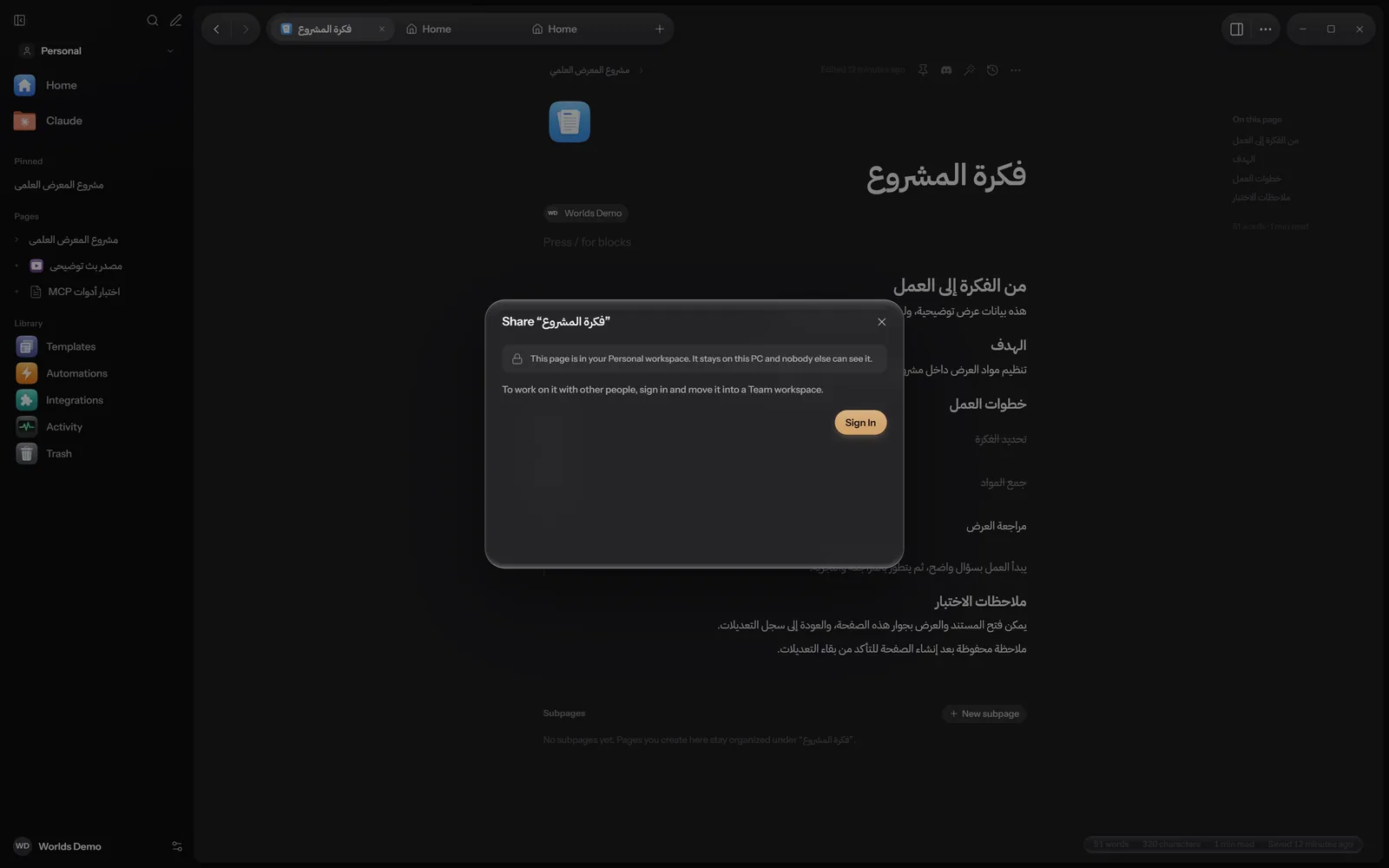
The Share sheet for a Personal page before signing in. The page and the name are sample data. Move it into a Team workspace
Click New Team Workspace if you have none, or pick an existing one and click Move Here. You can bring it back later with Move to Personal.
Choose who can open it
Under Add people or groups, pick workspace members and set each one's access. Or set the access for "Everyone in" the workspace. To let only the people you name open it, choose Only people listed here: it stops access that comes from parent pages, though owners and admins can always open every page.
Only people with full access can change who can open a page. If you are offline, sharing shows and can be changed when you are back online, and you can keep working on the page.
Inviting with a link
Invites in Worlds are links that you copy and send yourself. Worlds does not send invites by email. You find Invite with a Link in the Share sheet, and all of a workspace's links under Settings, Account, then the People button next to the workspace.
Choose the role
Under Role, pick what the person using the link gets.
Choose how long and for how many
Expires after: 1 day, 7 days or 30 days. Who can use it: one person, up to 10 people, or no limit.
Create and copy the link
Click Create Link, then Copy. Links are shown in full only once, when you create them. Revoke stops a link at once.
The person who receives it opens Settings, Account, Join a workspace and pastes it. An invite to a single page needs full access on that page, and grants at most edit access.
Roles in a Team workspace
| Role | What it can do |
|---|---|
| Owner | Everything, including deleting the workspace. The owner cannot leave without transferring ownership first. |
| Admin | Manages people, groups and every page. Invites, changes and removes members and guests. |
| Member | Works on shared pages and adds new ones. Gets the workspace's default access, which is edit unless changed. |
| Guest | Sees only the pages shared with them, at most with edit access. Cannot add top-level pages. |
Owners and admins always have full access on every page.
Page access
| Access | What it allows |
|---|---|
| Full access | Edit, comment, change sharing, and delete other people's comment threads |
| Can edit | Edit the page and comment |
| Can comment | Write comments only |
| Can view | Read only |
| No access | Cannot open the page |
Access passes down from a parent page to the pages under it. If a page has an entry for you by name, that entry applies, even if it is lower. Otherwise the highest access from your groups and from "Everyone in" the workspace applies.
The server enforces access
- The server checks your access when you open a page, and again on every change.
- View access cannot write, and comment access can write only comments. Nobody can write as someone else or edit someone else's comments.
- If your access is removed, the page closes for you at once and the app deletes its shared copy from your device: "Your access to this page was removed. Its shared copy on this computer was cleared."
Who is here now (Windows)
In the Windows app, at the top of a shared page:
- Up to 4 round badges with the initials of the people here, each in their colour, then
+Nfor the rest. Hover to see the name. - Other people's cursors and selections in the text, with their names.
- The sync status: Synced, Syncing, Offline or Needs attention.
- A menu with Sync Now, Shared History, Comments and Notifications. Notifications here are mentions and replies in comments.
Working offline
- Windows: you keep working on a shared page offline. Your changes wait on the device and are sent when the connection returns, merged with other people's changes without losing anyone's typing.
- iPhone, iPad and Mac: pages you open are saved on the device so they open offline. Blocks are shown read only, and you can edit the fields of pack items (such as an assignment's due date) even offline, if your access at the last connection was Can edit or Full access. "Changes you make here are sent when you are connected again. Access is checked again then." If the server refuses a change you see "The server refused a change made on this device."
- Android: you edit text while connected ("Connected. Tap text to edit it."). Offline, edits are saved on the device until access is confirmed, or the page stays read only, depending on your access.
On each platform
| Feature | Windows | Android | iPhone, iPad and Mac | Web |
|---|---|---|---|---|
| Share a page and invite people | Yes | Invites | No | No |
| Open shared pages | Yes | Yes | Yes | No |
| Edit a shared page's text | Yes | Yes | Pack fields only | No |
| See who is here | Yes | No | No | No |