

Docs / Draw, present and media
Presentations
Make slides with text, pictures, video and shapes, pick a background for each slide, then present full screen and move between slides with the keyboard.
Creating a presentation
From New, choose Presentation, or run the New Presentation command from the command palette. All slides are 16:9 (1280 by 720), and a new presentation starts with a dark theme.
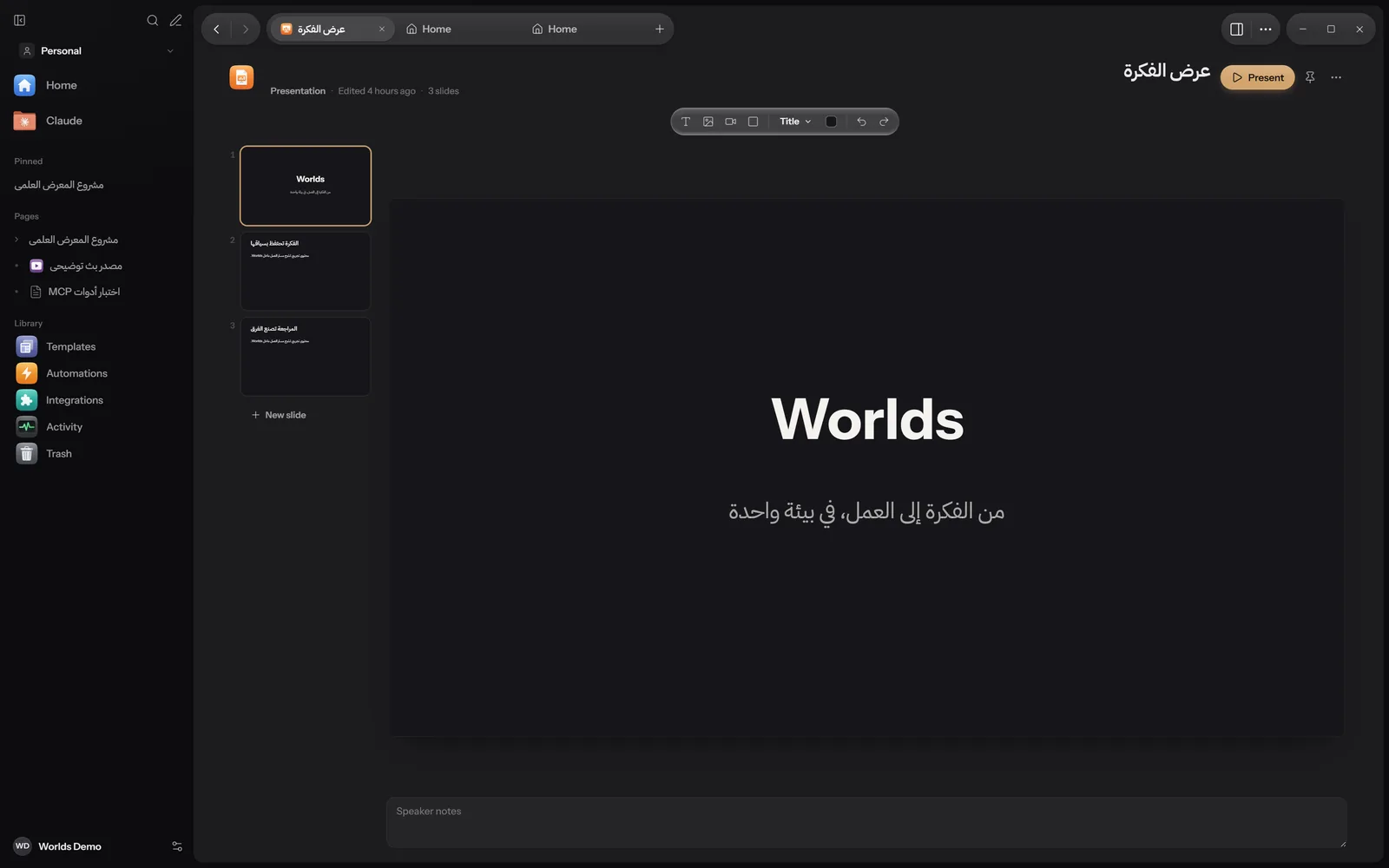
Slides
- New slide under the slide list: pick its layout from a menu.
- Right-click a slide: New Slide After, Duplicate, Delete Slide.
- Drag the thumbnails to change the order.
- PageUp and PageDown move between slides while editing.
Layouts
Title, Title and Content, Section, Two Columns, Picture with Caption, Blank. Text places show Click to add a title, Click to add a subtitle and Click to add text. The layout menu is also in the toolbar, to change the layout of the current slide.
The toolbar
- Text box.
- Picture: png, jpg, jpeg, gif, webp, avif or svg.
- Video: mp4, webm, mov or m4v.
- Shape: Rectangle, Ellipse, Line. A selected shape has a Fill button for its colour.
- The layout menu, then Background (see below).
- Undo (Ctrl + Z) and Redo (Ctrl + Y).
When text is selected you get smaller and larger font buttons (14 to 120), bold and italic, Text colour, and alignment. With any element selected: Arrange (Bring to Front, Bring Forward, Send Backward, Send to Back), Duplicate (Ctrl + D) and Delete.
Editing shortcuts
| Keys | What it does |
|---|---|
| Ctrl + Z, Ctrl + Y | Undo, redo |
| Ctrl + D | Duplicate the selected element |
| Ctrl + A | Select all elements |
| Ctrl + C, Ctrl + V | Copy, paste |
| Delete | Delete the element |
| Arrows | Nudge the element, or 10 pixels with Shift |
| PageUp, PageDown | Previous and next slide |
| F5 | Start presenting |
Slide background
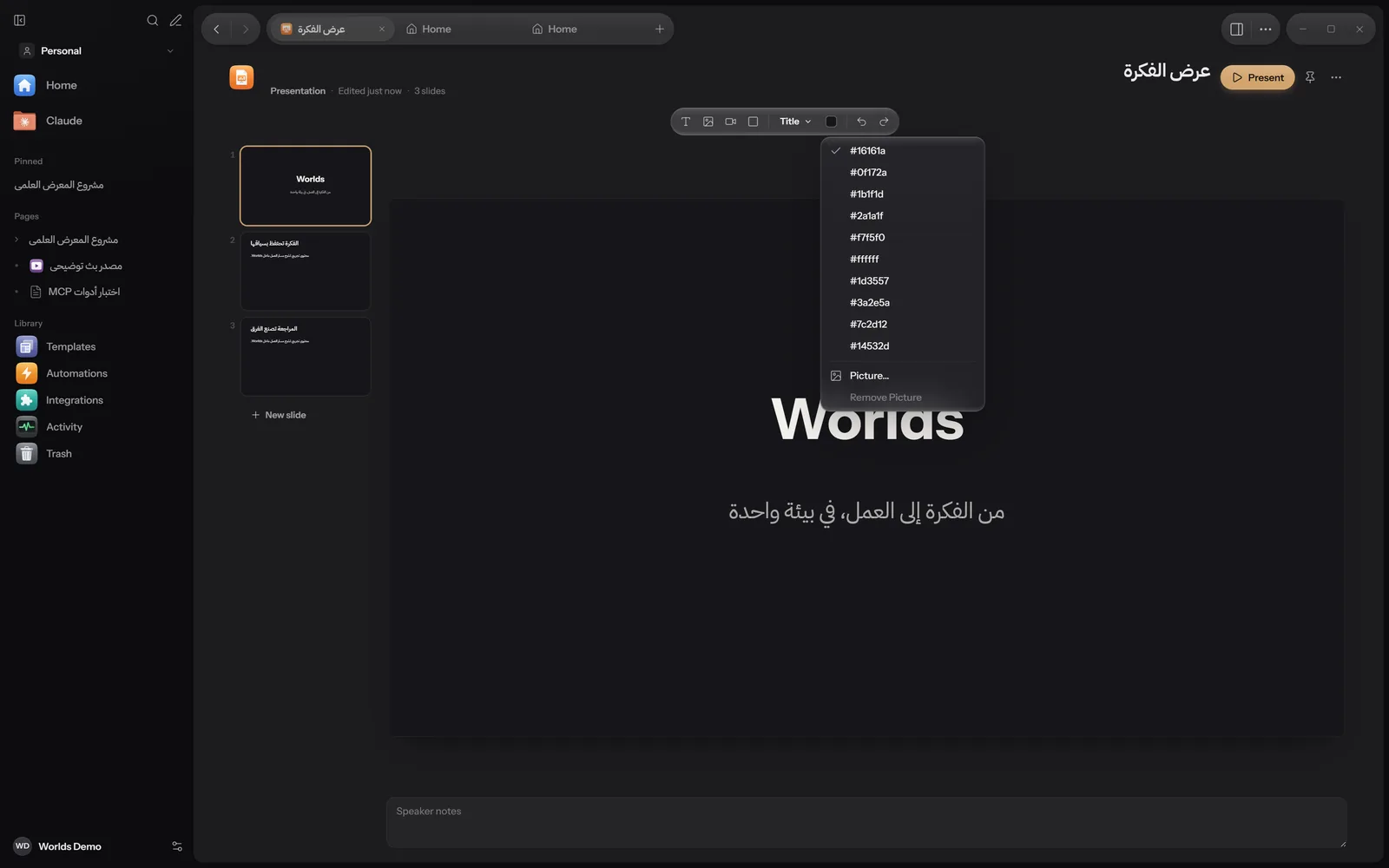
The Background button in the toolbar opens a menu with:
- Ten fixed colours, shown by their codes such as
#16161aand#ffffff: dark, navy, dark green, dark wine, ivory, white, blue, purple, rust, green. - Picture…: a picture from your computer (png, jpg, jpeg, webp or avif).
- Remove Picture.
There are no gradient backgrounds yet.
Speaker notes
Under the slide is a Speaker notes box. Write what you want to say there; the audience does not see it unless you show it yourself while presenting with N.
Presenting full screen
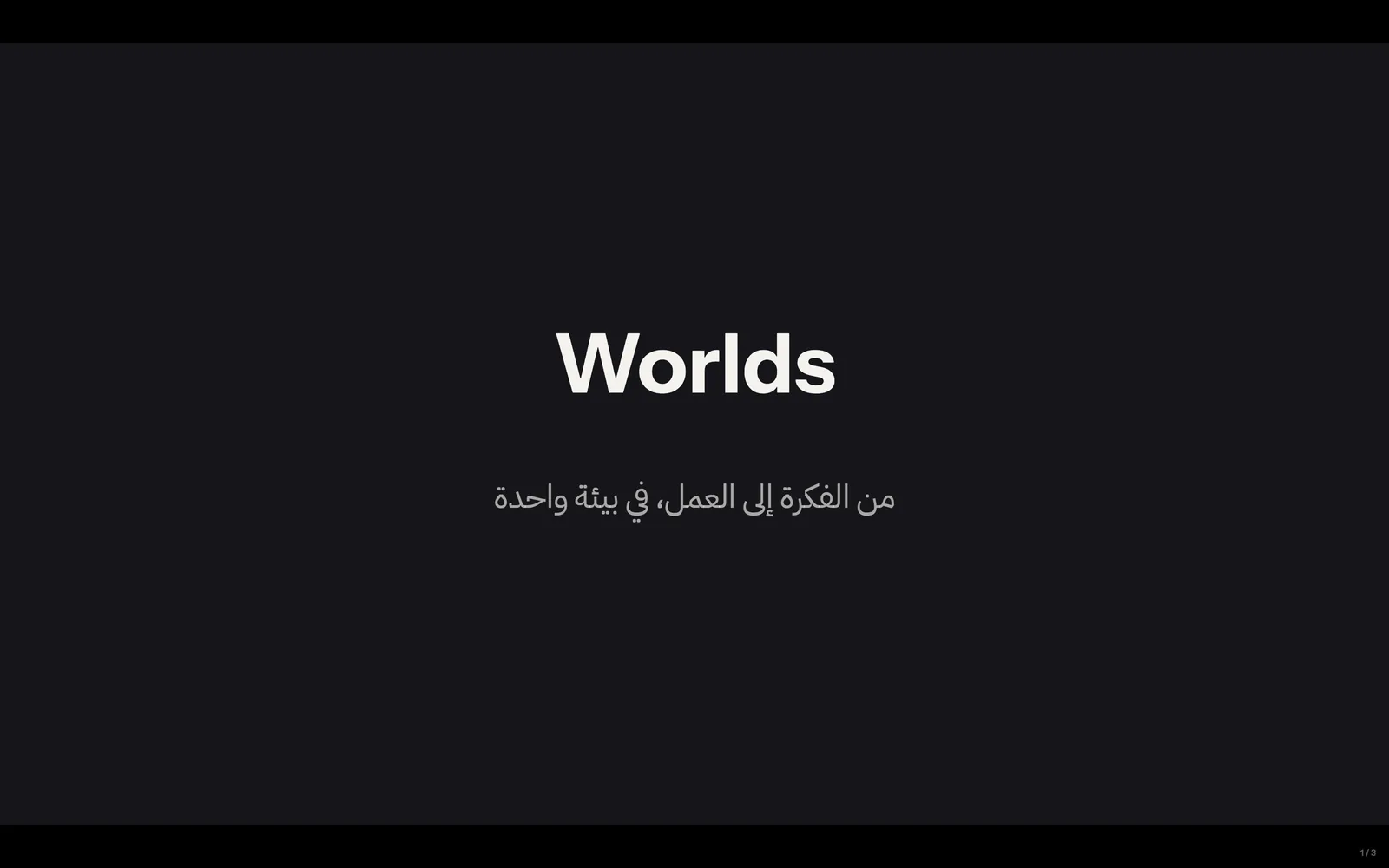
Press Present at the top of the editor, or F5. The slide fills the screen, and the corner shows the slide number out of the total, such as "1 / 3".
| Keys | What it does |
|---|---|
| Right or Down arrow, PageDown, Space, Enter, or a click | Next slide |
| Left or Up arrow, PageUp, Backspace | Previous slide |
| Home, End | First and last slide |
| N | Show or hide speaker notes |
| Esc | Stop presenting |
There is no separate presenter screen, and no export of a presentation to PDF or PowerPoint yet.
What works where
| Feature | Windows | Apple | Android |
|---|---|---|---|
| Editing slides | Yes | Partly | Partly: layouts, backgrounds, elements |
| Presenting full screen | Yes | Partly | Yes, 16:9 with touch and keyboard |
The Apple and Android apps are still in progress. Details in Install.