

Docs / Write and organise
Projects and resources
Everything you create in Worlds is a "resource": a page, document, spreadsheet, presentation, drawing, gallery, file and more. A project brings the resources for one piece of work together in one place.
Kinds of resource
| Kind | For | Guide |
|---|---|---|
| Page | Notes, ideas and anything in blocks | Pages |
| Document | A formatted document on paper pages | Documents |
| Spreadsheet | Tables, formulas and sheets | Tables |
| Presentation | Slides to present | Presentations |
| Drawing | Draw, edit images and explain visually | Drawing |
| Project | Gathers documents, files and pages | On this page |
| Gallery | Photos, videos and GIFs | The gallery |
| File | A picture, video, PDF or document from your PC | Files |
| Stream | A video stream link such as m3u8 | Streams |
| Task, Event, Capture, Goal | Tasks, calendar, inbox and goals | Quick add |
| Subject, Lesson, Assignment, Exam, To bring | Only with the Study pack | Study |
Creating a resource from the sidebar
Press New at the top of the sidebar (or on Home) to open the create menu. In order:
- Page (Ctrl + N), Document, Spreadsheet, Presentation, Drawing, Project, Gallery.
- Task, Event, Quick Capture (Ctrl + Alt + N), and Subject with the Study pack.
- Upload Files: each file becomes its own File resource. And Add Stream Link.
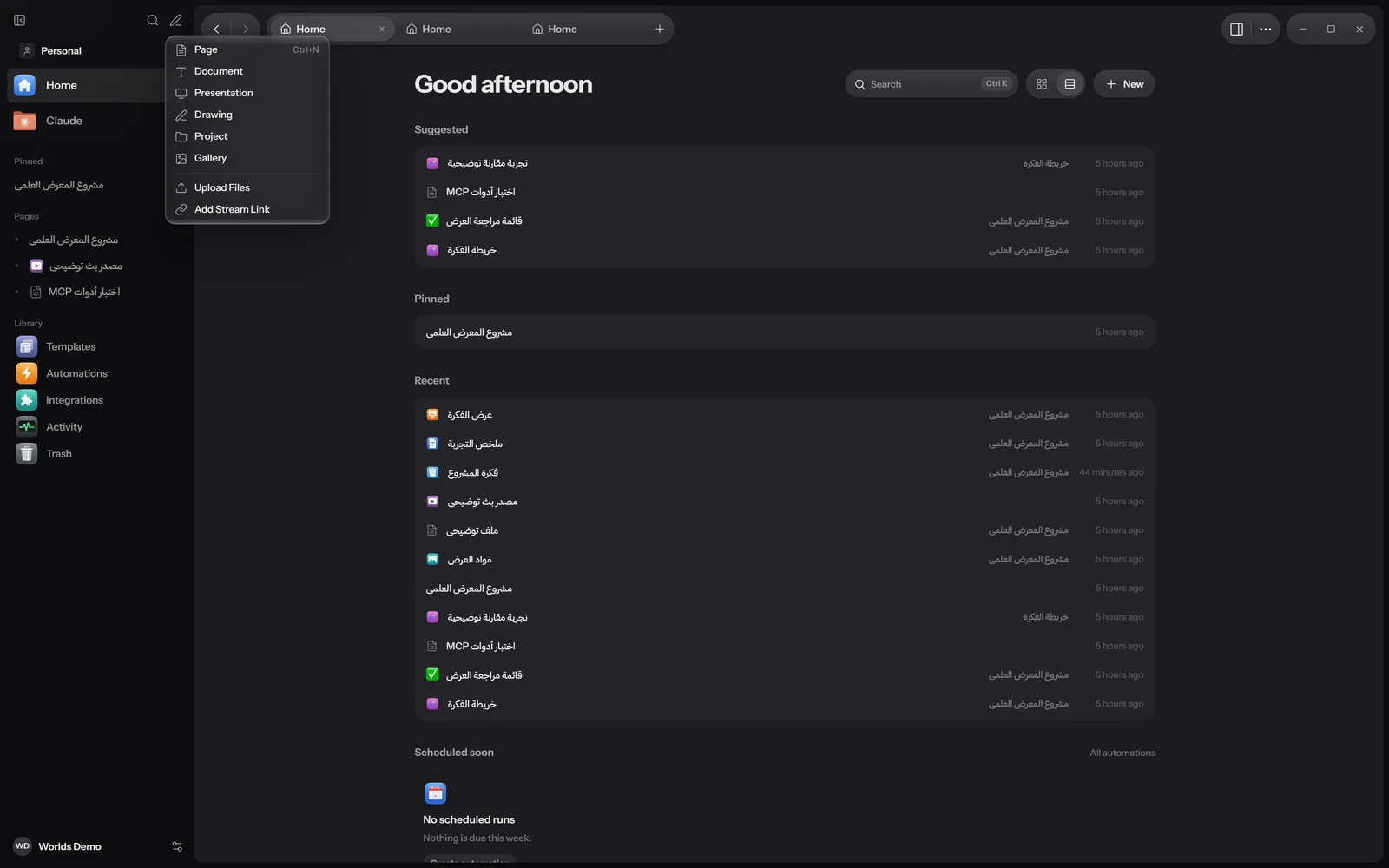
Pages, documents, spreadsheets, presentations, drawings, projects, galleries and files show in the Pages tree. If you create a resource with the New button inside a project, it is created under that project.
The resource header
Every resource has a header with its icon (Change icon), its title, its kind and last edit time, a Pin button and a More button. The More menu holds New Subpage, Pin, Favorite, Duplicate, Move to, Share, Save as Template, Archive, Delete.
The project
A project gathers what belongs to one piece of work: a research paper, a science fair, a customer order. Create one with New, then Project.
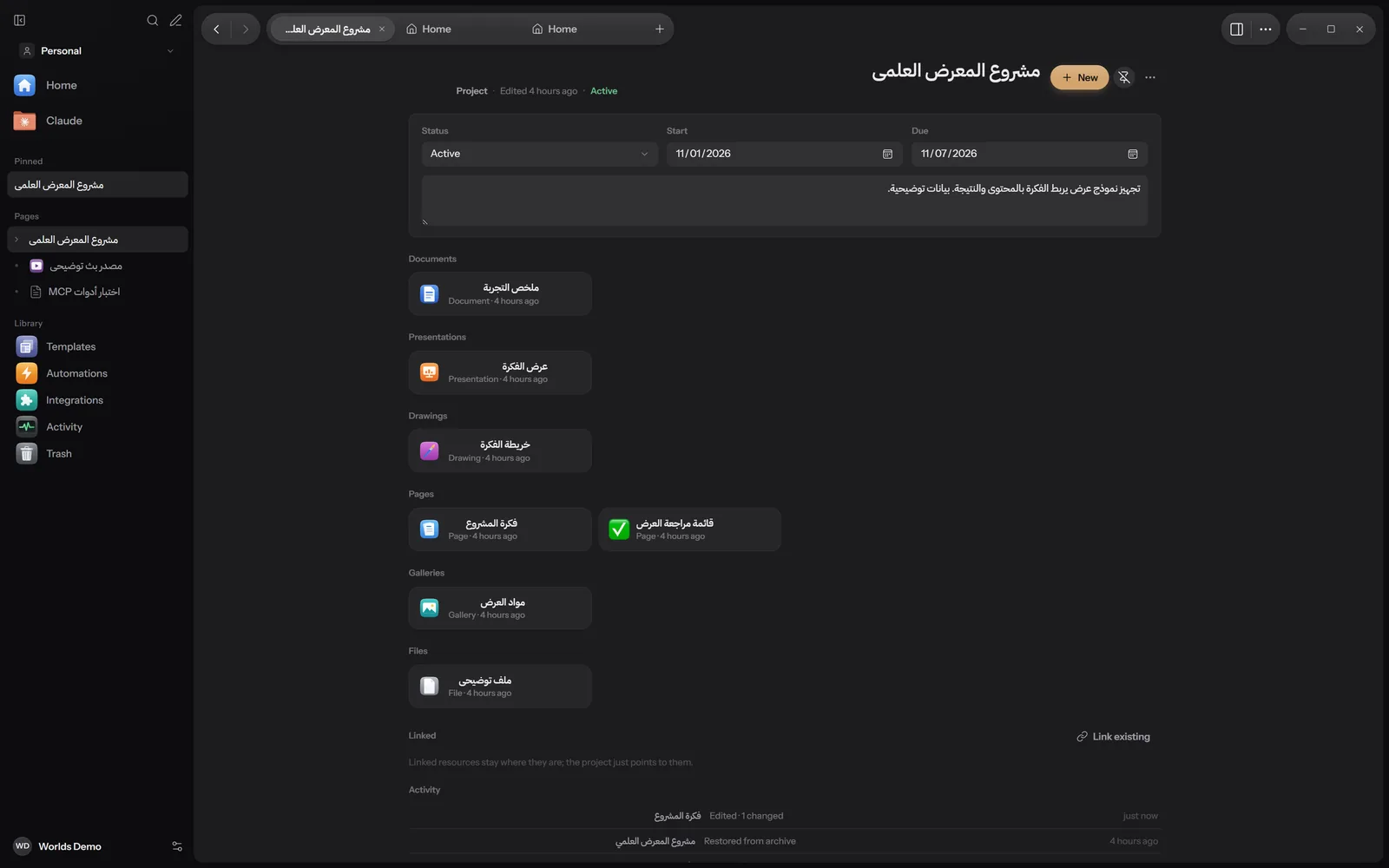
Project details
- Status: Planned, Active, Paused, Done.
- Start and Due.
- A short description: What is this project about?
- The project's tasks, with an Add a task in this project field.
Two ways to gather resources
| Inside the project | Linked to the project | |
|---|---|---|
| How | The New button in the project header | Link existing in the Linked section |
| Where the resource lives | Under the project in the tree | In its own place; the project just points to it |
| How it shows | Grouped by kind: documents, presentations, drawings, pages, galleries, files | Cards in the Linked section, each with Unlink |
With Link existing you type in Find something to link and pick. At the bottom of the project, the Activity section lists the latest changes to its resources.
Study items
Subjects, lessons, assignments and exams belong to the Study pack, which is off to start with. Turn it on in Settings, then Packs, or from the Home question Do you use Worlds for school or university? with Turn on Study. Turning the pack off hides its items without deleting them. See Packs.
Once it is on, Study appears in the navigation, and a Subjects section appears in the sidebar with New subject.
The Study page
It shows Today's classes, Due in the next two weeks and Subjects. If you have no subjects yet, you start with Set up your subjects.
A subject
- Teacher, Room, Code (such as CHEM 101), Colour.
- Timetable: add a Class time so its weekly classes show in the Calendar.
- Assignments: homework is called an "assignment" here. The add field understands dates, such as "Lab report sunday".
- Exams: the same way, such as "Midterm 24/11 8am".
- To bring or print: things to bring or print, such as "Calculator tomorrow".
- Tasks, Textbooks & Solution Books, and resource links (YouTube, Telegram, Classroom, مدرستي).
- Lessons: the Lesson notes button creates a lesson page under the subject.
- The subject header shows the Average from graded work. To delete it, use Delete subject.
Assignments, exams and things to bring
| Item | Fields |
|---|---|
| Assignment | Hand in or Not handed in, Due, Given on, Teacher, Out of, Grade, Instructions |
| Exam | A day countdown, Date, Time, Location, Out of, Score, What it covers |
| To bring | Ready or Not ready, Needed on, Needs printing, Copies, colour mode, double-sided, page range |
The sample workspace has two subjects with all of these. See The sample workspace.
What works where
| Feature | Windows | Apple | Android |
|---|---|---|---|
| Projects | Yes | Partly: create and edit | Partly: status, dates, nested resources and links |
| Study items | Yes | In progress | Partly: subjects, tasks and calendar, without timetable editing |
The Apple and Android apps are still in progress. Details in Install.