

Docs / Write and organise
Pages and blocks
A page in Worlds is made of blocks: a paragraph, a heading, a list, a picture, a table and more. You add blocks with "/", move them by dragging, and link pages together by typing "@".
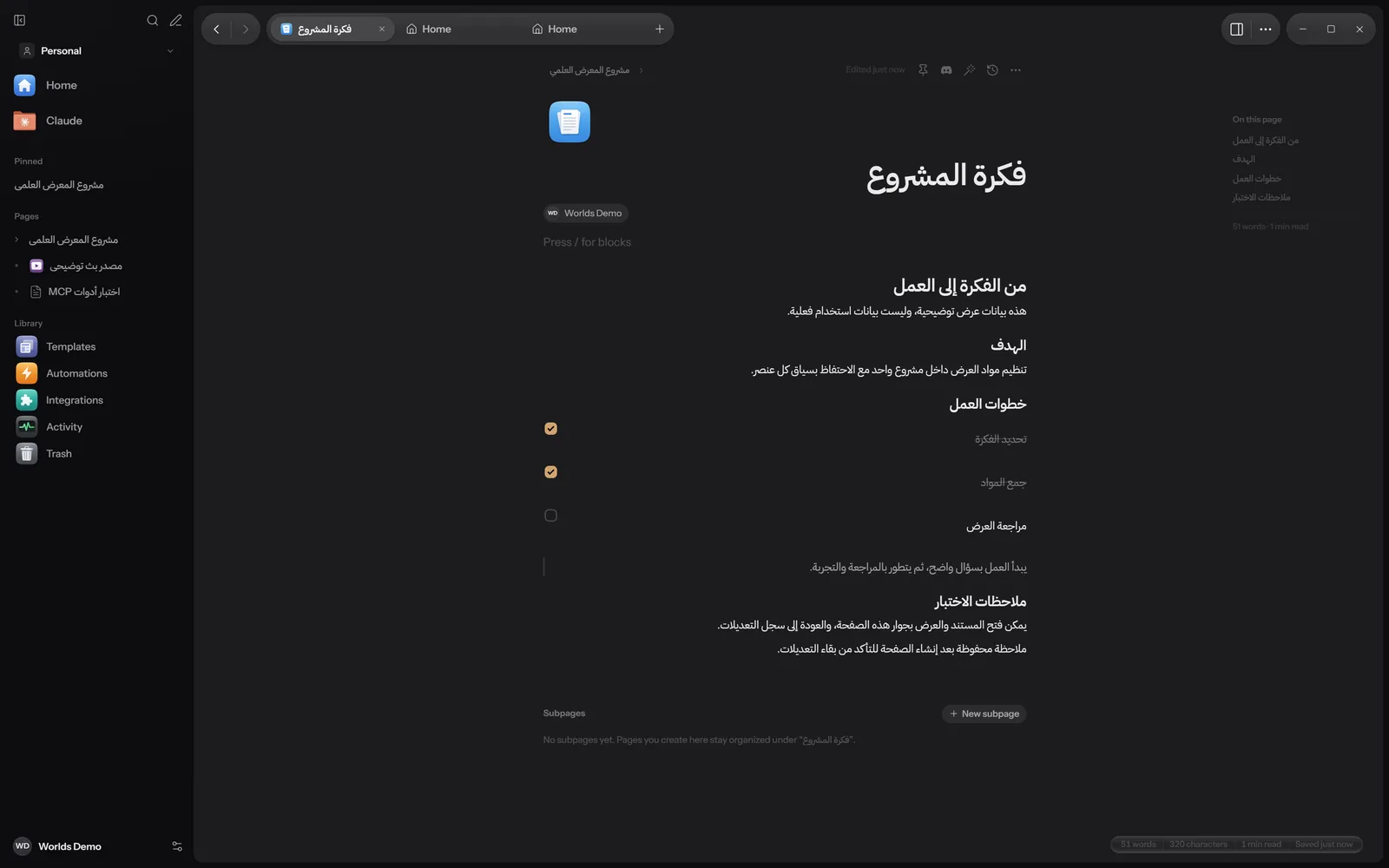
Creating a page
- Ctrl + N creates a new page, and Ctrl + Shift + N creates it in a pane on the right.
- The + button next to the Pages section in the sidebar, or New, then Page.
- For a page inside a page: New subpage in the sidebar or at the bottom of the page, or the Subpage block from the "/" menu.
An empty page offers starters under Start with: Checklist, Meeting notes, Journal entry, Board, Table of subpages, Two columns, Gallery.
Saving is automatic a moment after you stop typing, and Ctrl + S saves right away. At the bottom of the page you see the word and character count, reading time and save state.
The "/" menu and block types
Type / anywhere (except inside a code block) to open the block menu. Type a word to filter it, pick with the arrows and Enter or Tab, or press Esc to close. You can also press the + button next to any block (Insert block below), which opens a new line with the menu.
The groups and their blocks, as the menu shows them:
| Group | Block | What it does |
|---|---|---|
| Basic | Text | A plain paragraph. |
| Heading 1, Heading 2, Heading 3 | Headings in three sizes. | |
| Bulleted List | A list with bullets. | |
| Numbered List | A list with numbers. | |
| Checklist | Items with check boxes. | |
| Quote | Quoted text. | |
| Callout | A coloured note box. | |
| Highlight | A box for important text. | |
| Code | A code block. | |
| Table | A 3 by 3 table with a header row. For formulas, use a spreadsheet. | |
| Divider | A horizontal line. | |
| Pages | Subpage | A new page inside this one. |
| Page Reference | Mention another page. | |
| Layout | 2 Columns, 3 Columns | Blocks side by side. |
| Toggle | Collapsible section. | |
| Toggle Heading | A heading that folds what is under it. | |
| Collection | Subpages as a table with properties. | |
| Board | Subpages grouped by Status. | |
| Gallery | Subpages as cards with covers. | |
| Table of Contents | Live list of this page's headings. | |
| Tabs | Switch between sections in place. | |
| Media | Image Gallery | Several pictures in a grid. |
| Image | Pick a picture from your computer. | |
| Video | Pick a video from your computer. | |
| File | Attach any file. | |
| Embed Link | Paste a full link starting with https. | |
| YouTube, Spotify or Maps | Plays inside the page. | |
| Insert | Today's Date | Types today's date. |
| Current Time | Types the time now. | |
| Date and Time | Types both. | |
| Knowledge | Equation | LaTeX on its own line. |
| Inline Equation | LaTeX inside the text. | |
| Diagram | Mermaid flowcharts, sequences, timelines. | |
| Chart | Pie, bars or lines from a table on this page; adds a table if the page has none. | |
| Assistant | Prompt | Reusable instruction for Claude. |
| Assistant Instructions | Private rules for this page. | |
| Ask Claude | Opens Claude. See Claude. | |
| Discord | Discord Message | See Integrations. |
| Schedule |
Typing shortcuts
Type these at the start of a new line, followed by a space, and the paragraph changes right away:
| Type | You get |
|---|---|
#, ##, ### | Heading 1, 2, 3 |
- | Bulleted list |
1. | Numbered list |
[] | Checklist |
> | Quote |
``` | Code block |
--- | Divider |
When you select text, a small bar appears with Turn into, Bold, Italic, Strikethrough and colour. The other shortcuts are in the shortcuts table, and Ctrl + / opens the list inside a page.
The block handle
Hover any block to see two buttons beside it:
- + (Insert block below): a new line under the block, with the "/" menu.
- The grip (Drag to move, click for options): drag it to move the block, or click it for the block menu.
The menu changes with the kind of block. It holds:
- Turn Into: text, headings, lists, quote, callout, code.
- Text Direction: Automatic, Right to Left, Left to Right (text blocks).
- Color: text colour and background colour, with Default and No background.
- Copy Code: on code blocks.
- On tables: Add Row Below, Add Column Right, Toggle Header Row, Delete Table.
- Duplicate: copies the block.
- Move Up and Move Down.
- Copy Link: a link that leads to this exact block.
- Ask Claude About This.
- Delete.
Moving and nesting
- Within a page: drag the block by its grip to its new place, or use Move Up and Move Down in the grip menu.
- Side by side: insert 2 Columns or 3 Columns and put blocks inside.
- Inside a section: Toggle and Tabs hold blocks inside them.
- Pages inside pages: any page can hold subpages, as deep as you like. Drag them in the sidebar or use Move to from the page menu. See The sidebar.
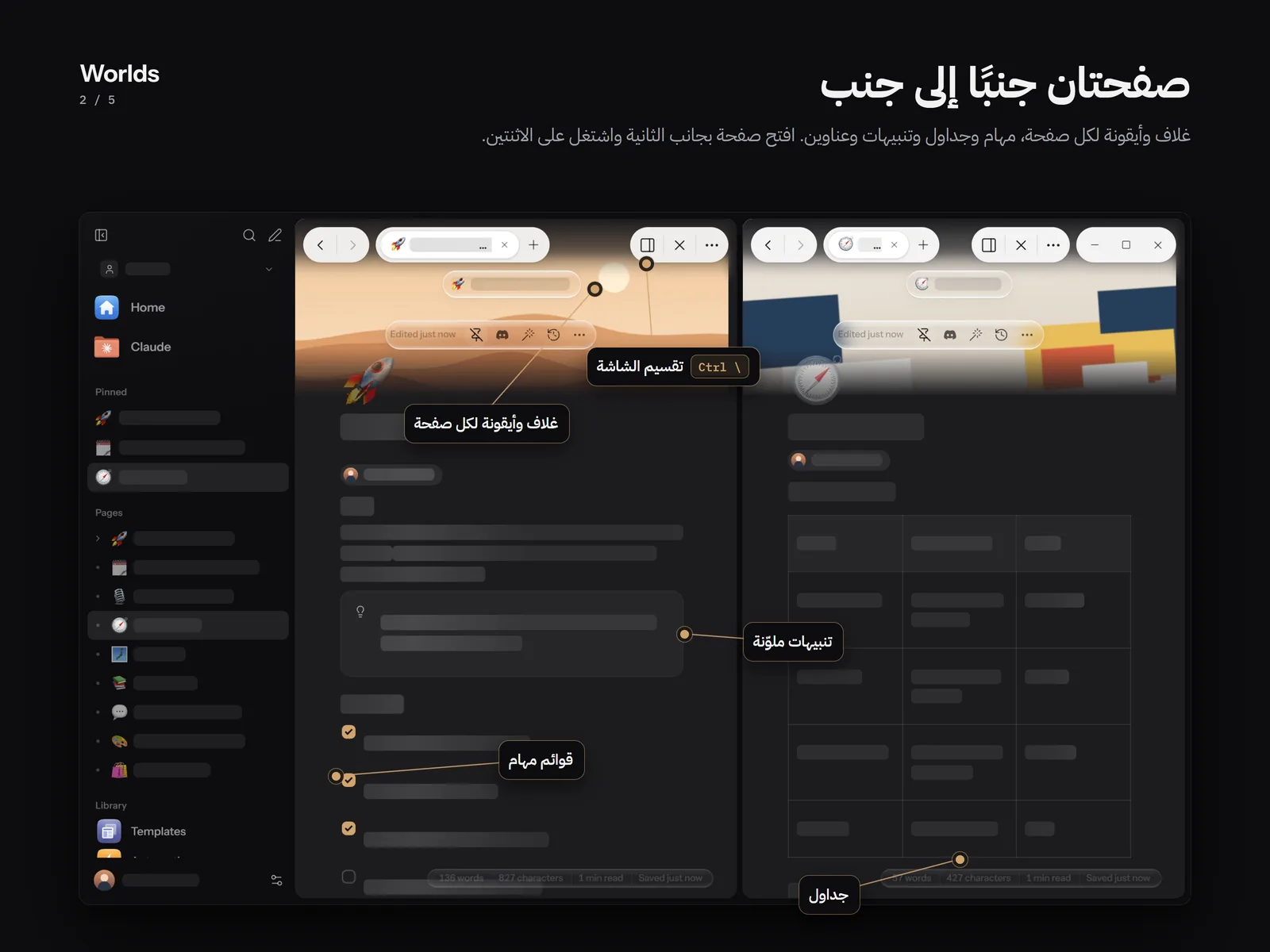
Page icon and cover
Hover above the title to see Add icon, Add cover and Add properties.
Icon
The icon picker has two tabs, Icons and Emoji, and a Search icons box. Upload uses your own picture (png, jpg, webp, gif, svg or avif), and Remove takes the icon away.
Cover
Pick a picture from your computer (gif, png, jpg, jpeg, webp or avif). Hover the cover to see Change, Adjust to choose the part that shows, and Remove. The same commands are in the More menu (⋯) at the top of the page: Add Cover or Change Cover, and Remove Cover.
Page look
In the More menu under Style: Default font, Serif or Mono, Small text, and Full width.
Properties
Properties are short fields at the top of a page, such as a status or a date. Press Add properties to add a Status property first, then Add a property to pick another type:
| Type | For |
|---|---|
| Status | Not started, In progress or Done. |
| Select | One choice from your list. |
| Tags | Several choices at once. |
| Date | A date. |
| Number | A number. |
| Checkbox | Yes or no. |
| Link | A web address. |
| Text | Short text. |
Click a property name to Rename it or Delete property. Choice lists have New option and Clear. The Collection, Board and Gallery blocks show subpages with their properties; the board, for example, groups them by Status.
Links between pages and backlinks
- Type @ or [[, then part of a page name, and pick it. If it does not exist, you are offered Create a new page with that name.
- Click a mention to open the page, or Ctrl + click to open it in a new tab.
- At the bottom of every page that others mention is a Mentioned in section listing those pages. It appears only when there are mentions. The Page Info panel shows the same list, or Nowhere yet.
- When a page has two or more headings, an On this page panel shows them next to the page and takes you to any heading with a click.
Pins and favorites
- Pin: the pin button at the top of the page (Pin or Unpin), or the page menu. Pinned pages show in the Pinned section of the sidebar and on Home.
- Favorite: from the page menu. There is no separate favorites list, but favorite pages come first in Suggested on Home.
Other page tools
- Find and Replace: Ctrl + F to find and Ctrl + H to replace.
- Focus Mode: Ctrl + Shift + F, and Esc to leave.
- Lock Page: Ctrl + Alt + L stops edits; press it again to allow edits.
- Export in the More menu: Copy as Markdown, Save as Markdown file, Print or Save as PDF.
- History: earlier versions of the page. See History and backups.
What works where
| Feature | Windows | Apple | Android |
|---|---|---|---|
| Writing and editing pages | Yes | Partly: edit, rename, move and move to Trash | Yes: rich text, headings, lists, tables, callouts, quotes, code |
The Apple and Android apps are still in progress. Details in Install.