

Docs / Write and organise
Documents
A document is a page written on real paper: it has a size, margins, a header and a footer, and you see it as it will print. Use it for reports, letters and homework you will hand in on paper or as a PDF.
Document or page?
| Page | Document | |
|---|---|---|
| Shape | Flexible width on screen | A sheet with a size and margins |
| Adding blocks | The "/" menu with every block type | A toolbar like a word processor |
| Formatting | Headings, lists, colours | Paragraph styles, fonts, sizes, line spacing, alignment |
| Output | Markdown or print | Print or PDF at the paper size and margins |
To create a document: New in the sidebar or on Home, then Document, or the New Document command in the command palette. A new document starts as A4 portrait.
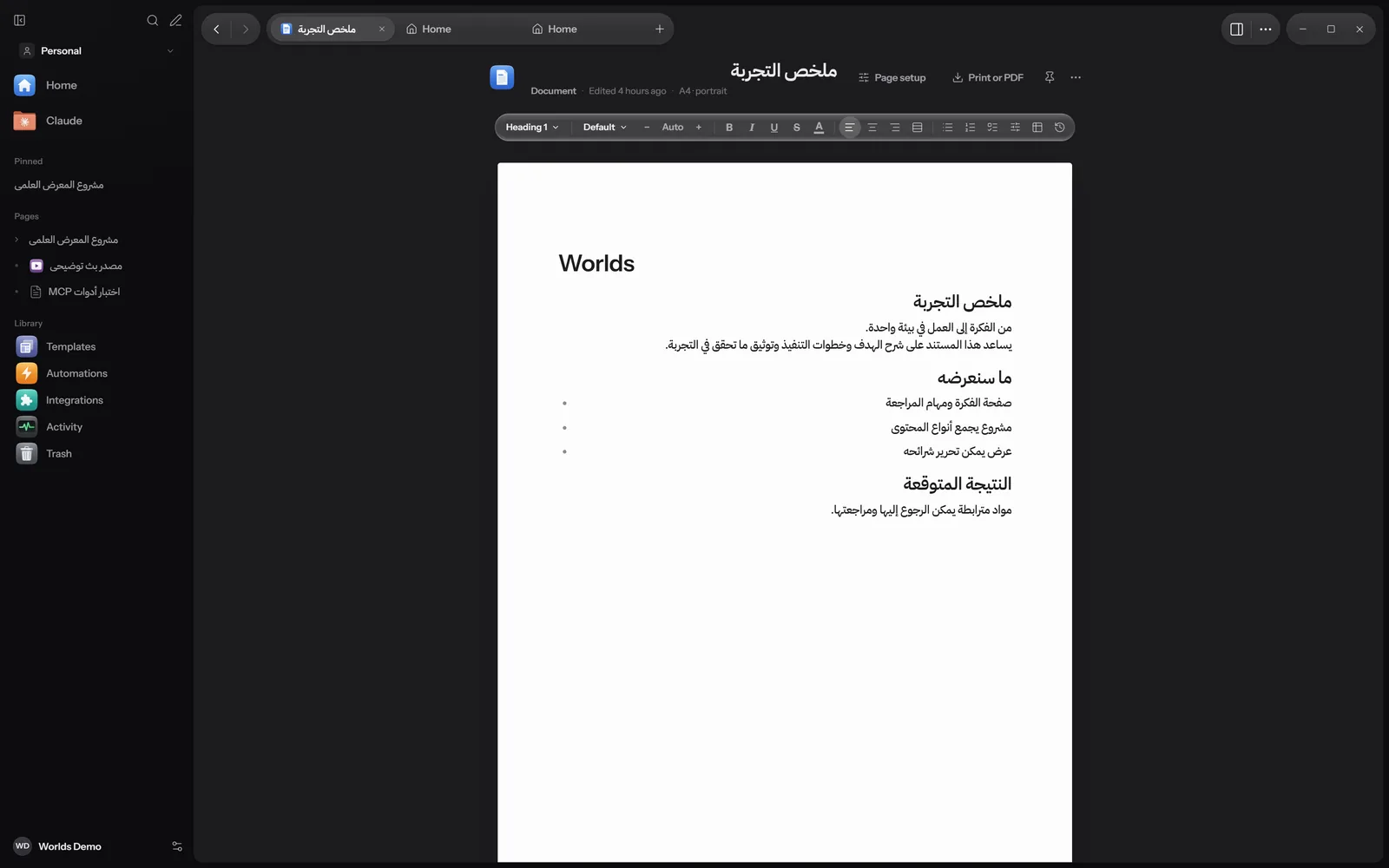
The toolbar
From left to right:
- Paragraph style: Normal, Title, Subtitle, Heading 1, 2 and 3, Quote, Caption.
- Font: Default, then Instrument Sans, IBM Plex Sans Arabic, Segoe UI, Calibri, Arial, Tahoma, Georgia, Cambria, Times New Roman and Courier New.
- Size: the Smaller and Larger buttons, and a menu with Document size and sizes from 8 to 72 points. Auto means the document size.
- Bold (Ctrl + B), Italic (Ctrl + I), Underline (Ctrl + U), and Strikethrough.
- Text colour: a Text section for the letter colour, and a Highlight section with Automatic, five markers and No highlight.
- Alignment: Align left, Center, Align right, Justify.
- Lists: Bulleted list, Numbered list, Checklist.
- Line spacing: Document spacing, or 1, 1.15, 1.5 or 2.
- Table: inserts a 3 by 3 table with a header row.
- Clear formatting.
A document uses the same editor as pages, so each paragraph follows the direction of its text, and Arabic and English sit together in one document with no setup.
Page setup
Press Page setup at the top of the document. Under the title you see a summary of the current setup, such as "A4 · portrait".
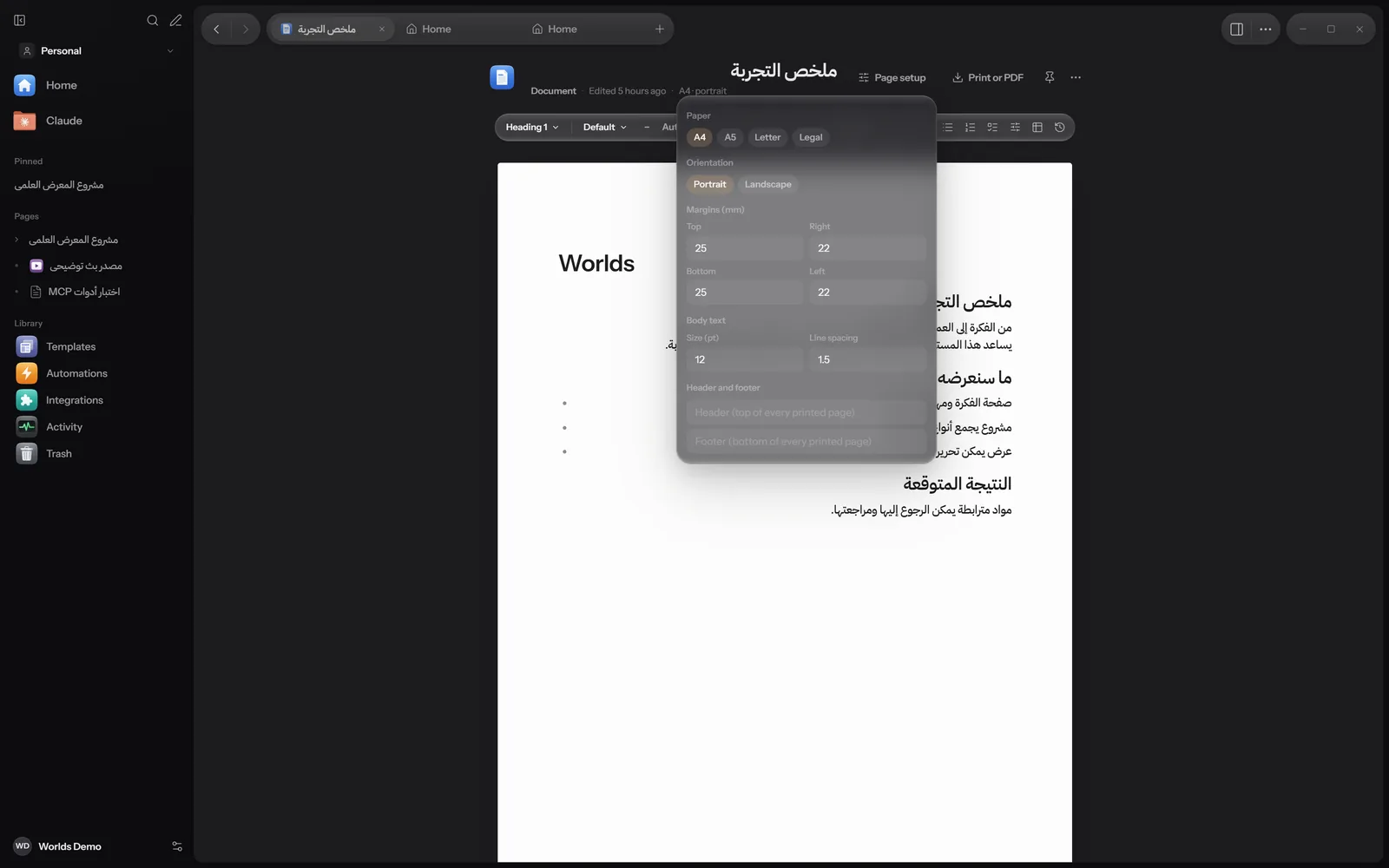
| Setting | Options | Default |
|---|---|---|
| Paper | A4 (210 by 297 mm), A5 (148 by 210), Letter (215.9 by 279.4), Legal (215.9 by 355.6) | A4 |
| Orientation | Portrait or Landscape | Portrait |
| Margins (mm) | Top, Right, Bottom and Left, each from 0 to 80 mm | 25, 22, 25, 22 |
| Body text: Size (pt) | 6 to 48 | 12 |
| Body text: Line spacing | 1 to 3 | 1.5 |
| Header and footer | Plain text shown at the top and bottom of every printed page | Empty |
Documents have no automatic page numbers yet. The header and footer are fixed text repeated as is on every page.
Printing and saving as PDF
Press "Print or PDF"
The button sits at the top of the document next to Page setup. It opens the Windows print window at the paper size and margins you chose.
Choose the printer
To print on paper, pick your printer. For a PDF file, pick a PDF printer such as Microsoft Print to PDF.
Save
Press Print, then choose where to save the file and its name if you are making a PDF.
Documents do not export to Word (docx) or HTML yet. Ordinary pages also have Copy as Markdown and Save as Markdown file. See Page tools.
What works where
| Feature | Windows | Apple | Android |
|---|---|---|---|
| Creating a document and viewing it as paper pages | Yes | Partly | Yes: A4 pages, header and footer, paragraph styles |
| Printing to PDF | Yes | In progress | Yes |
The Apple and Android apps are still in progress. Details in Install.