

Docs / Write and organise
Templates
A template is a ready-made page you create new pages from with one click: meeting notes, a project tracker, a mind map. The page you get is an ordinary page that you can change as you like.
Opening templates
- In the sidebar: Library, then Templates.
- Or the Templates command in the command palette.
- Home also shows up to 6 templates in its Templates section, with All templates.
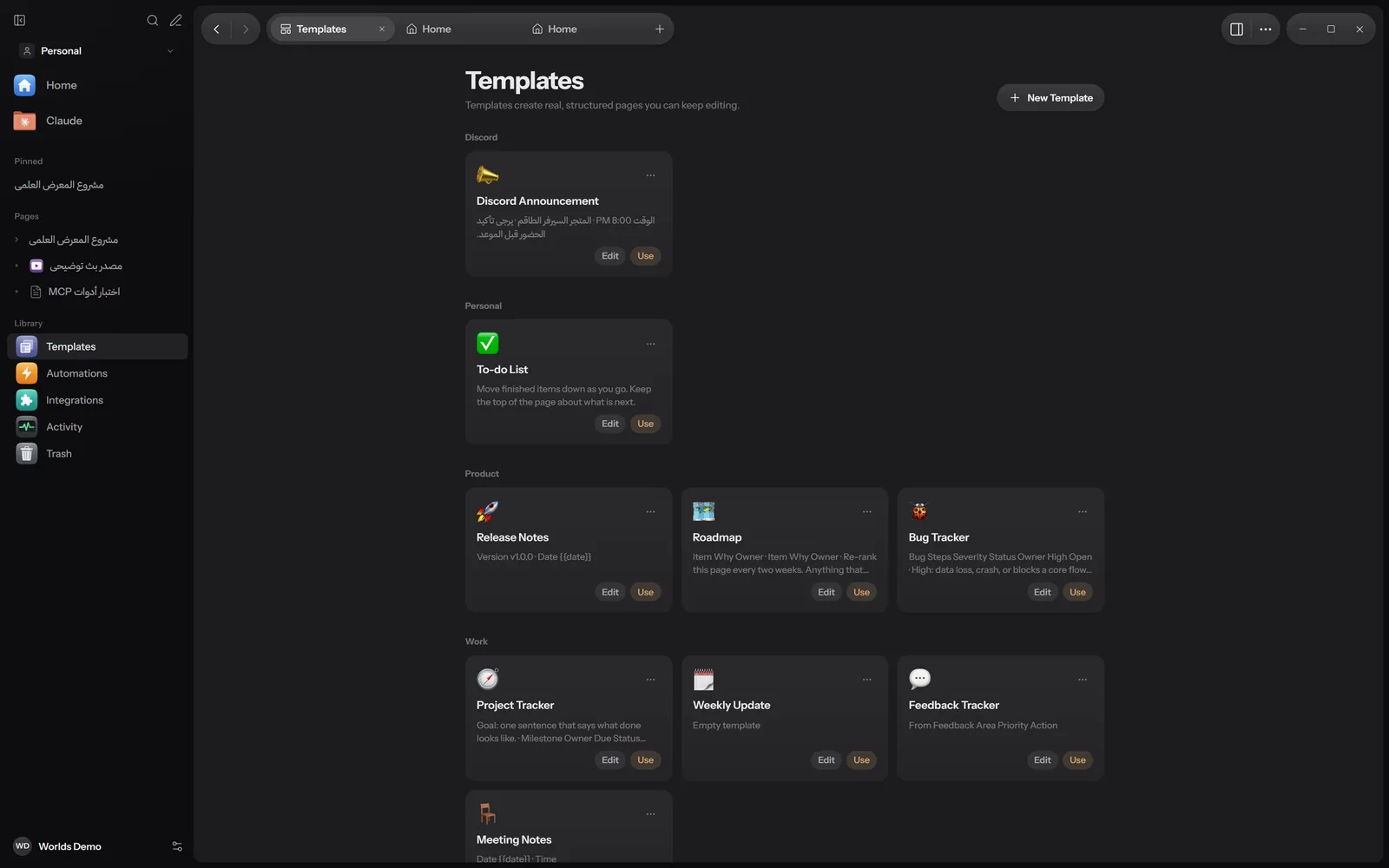
At the top are filter buttons: All, Visual Canvases, then the categories.
Ready-made templates
| Category | Templates |
|---|---|
| Personal | To-do List |
| Work | Project Tracker, Weekly Update, Feedback Tracker, Meeting Notes |
| Product | Release Notes, Roadmap, Bug Tracker |
| Discord | Discord Announcement |
| Mind Maps & Concepts | Ten templates with English and Arabic titles: Radial Mind Map, Concept Map, Root Cause Fishbone, SWOT & Strategic Map, Cornell + Feynman Map, Decision Tree & Scenarios, Argument & Evidence Map, Systems Thinking Loop, Compare & Contrast Map, Knowledge Tree & Spaced Review |
If a template contains {{date}}, today's date is written in its place when you use it. The Weekly Update template, for example, gets a title of "Weekly Update" followed by today's date.
Using a template
Any of these creates a new page from the template:
- The Use button on the template card.
- The card menu (⋯), then Use Template.
- A click on the template in the Templates section of Home.
- Type the template name in search (Ctrl + K) and pick it.
Spreadsheets have their own templates inside the spreadsheet. See The spreadsheet.
Creating a template
From an existing page
Open the page
Set it up the way every new page should start: headings, lists, properties.
Save it as a template
From the page menu (right-click in the sidebar, or the More button) choose Save as Template, or run Save Page as Template from the command palette.
Find it under Custom
The new template appears in the Custom category. The original page stays as it is.
From scratch
On the Templates page press New Template. An empty template is created in the Custom category for you to fill in.
Editing, duplicating and deleting
- Edit on the card, or Edit Template in its menu: opens the template as a page you edit with all the page tools. Edits only affect pages you create afterwards.
- Duplicate in the card menu: a copy of the template to change without touching the original.
- Delete Template: asks Delete template?, then moves the template to Trash. Pages already created from it are not affected, and you can restore it from Trash.
Visual canvases
Under the Visual Canvases filter (they also show with All and Mind Maps & Concepts) are four ready-made drawing canvases, with Arabic titles:
- لوحة خريطة ذهنية متفرعة (Radial Mind Map Canvas)
- لوحة خريطة مفاهيمية (Concept Proposition Network)
- لوحة إيشيكاوا للأسباب الجذرية (Fishbone Canvas)
- لوحة مصفوفة SWOT الرباعية (a 2 by 2 SWOT canvas)
The Create Canvas button turns one into a new drawing that you edit in the drawing editor.
What works where
| Feature | Windows | Apple | Android |
|---|---|---|---|
| Using ready-made templates | Yes | Partly: 5 templates | Yes: 9 templates |
| Your own templates and editing them | Yes | In progress | Yes |
| Visual canvases | Yes | In progress | No |
The Apple and Android apps are still in progress. Details in Install.